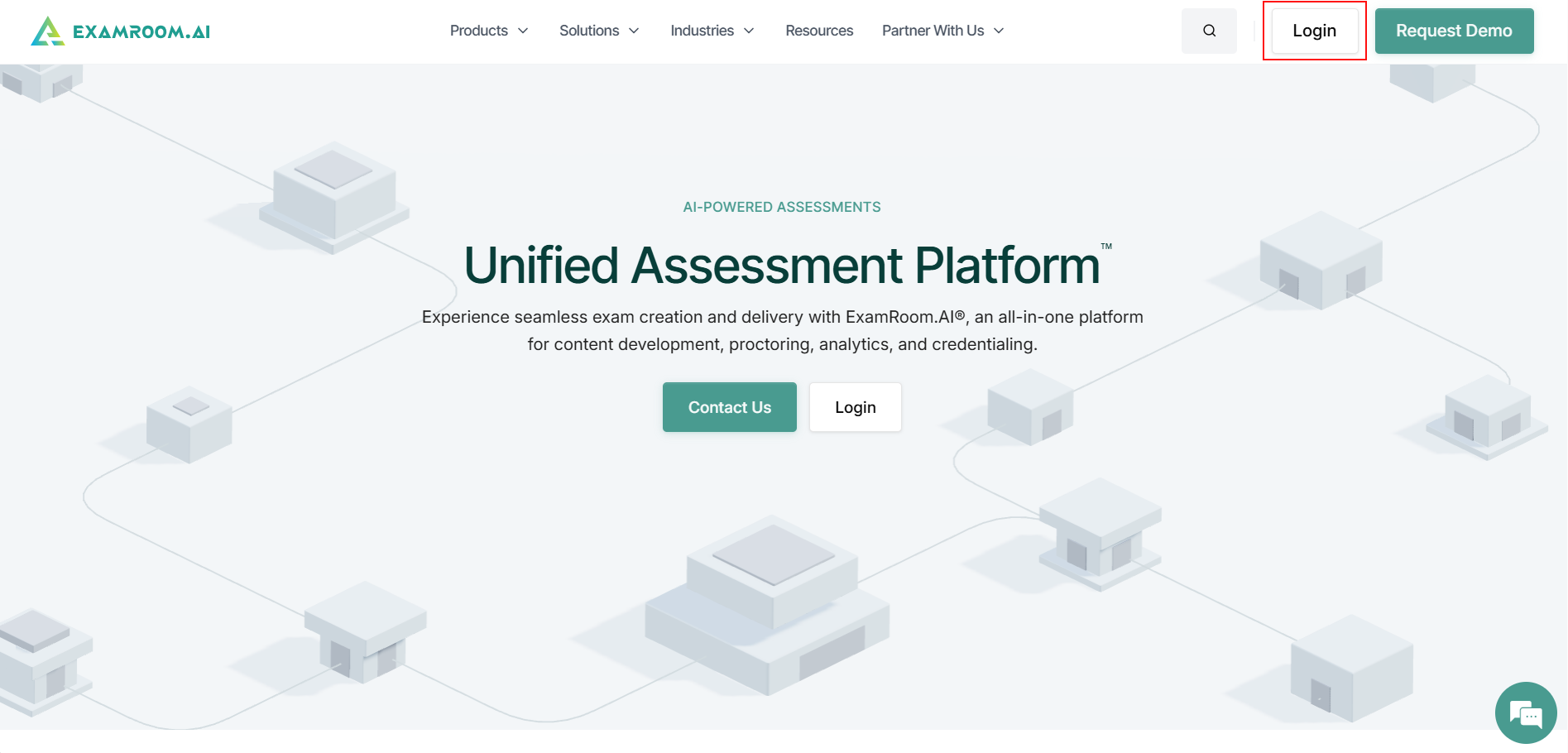
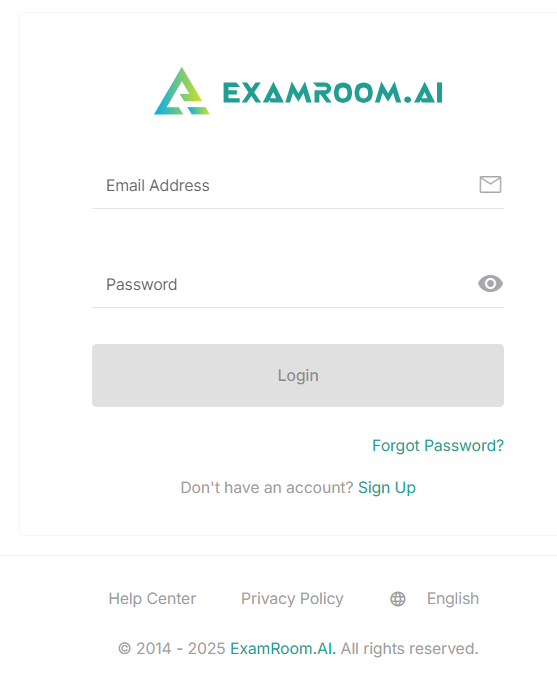
Visit app.examroom.ai to log in to the candidate console. You can also go to examroom.ai and click Login in the top-right corner of the page.
If you already have an account, please enter your credentials and click Login.
Start Exam
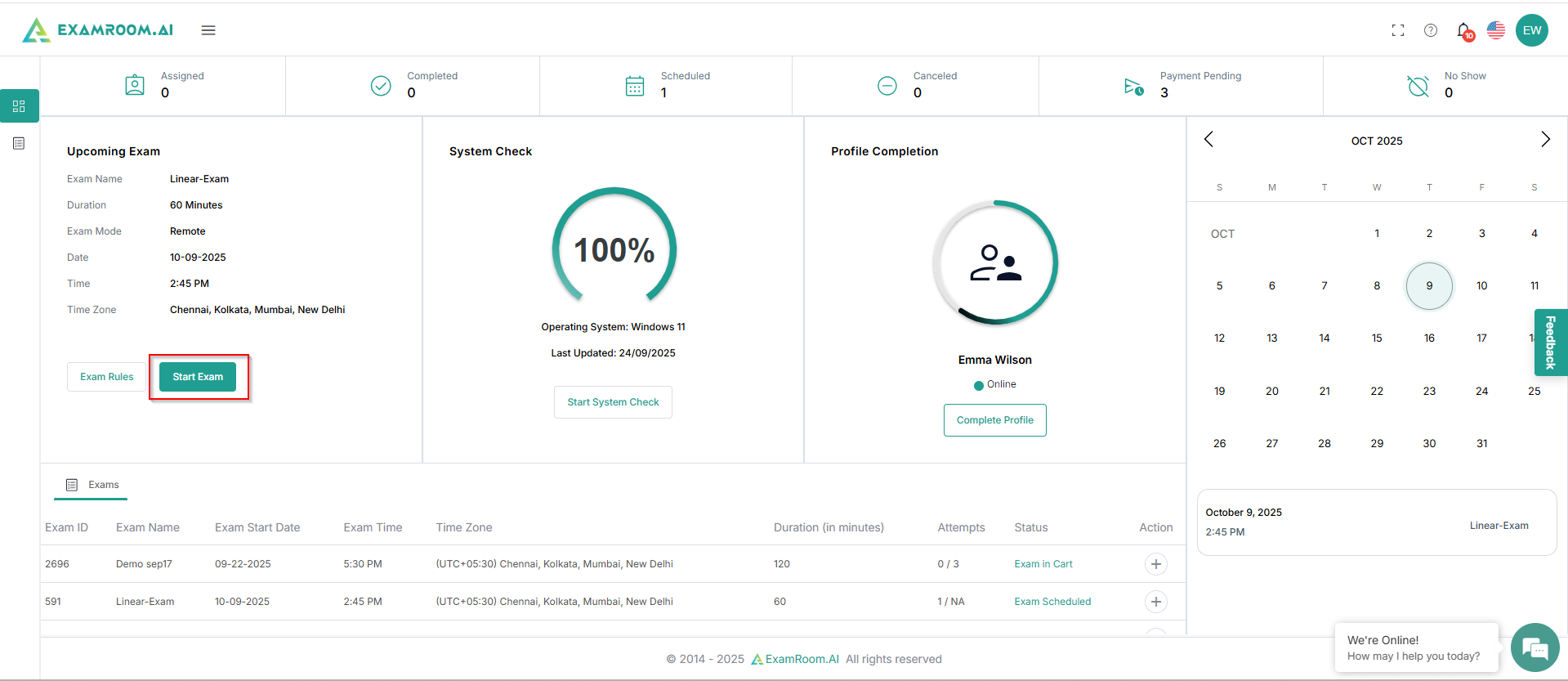
On the Candidate Dashboard, under the UpcomingExam section, click StartExam.
Note: The start exam button will be enabled only 15 minutes before the scheduled time.
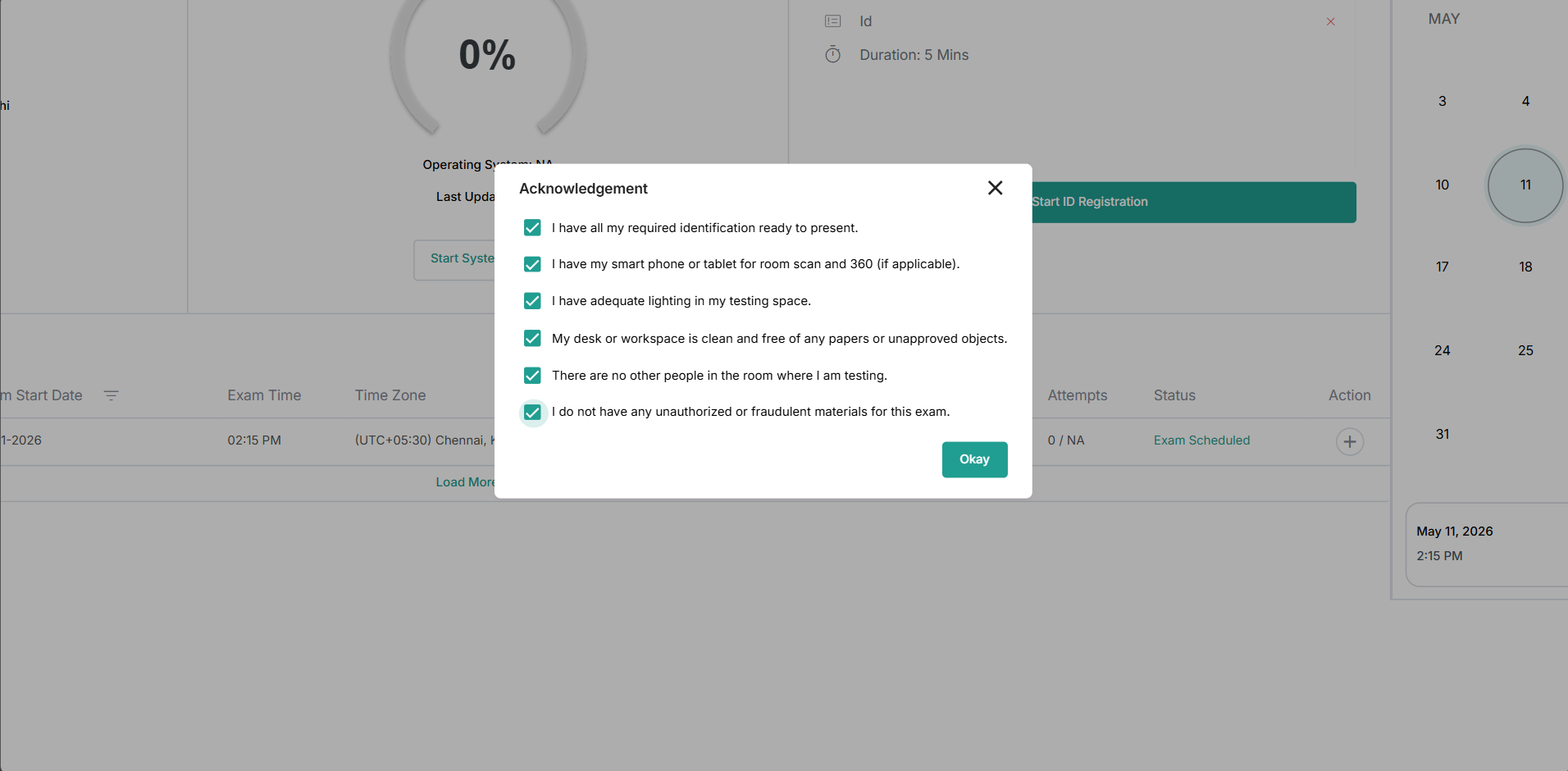
Review the Acknowledgement, check the boxes, and click Okay to proceed.
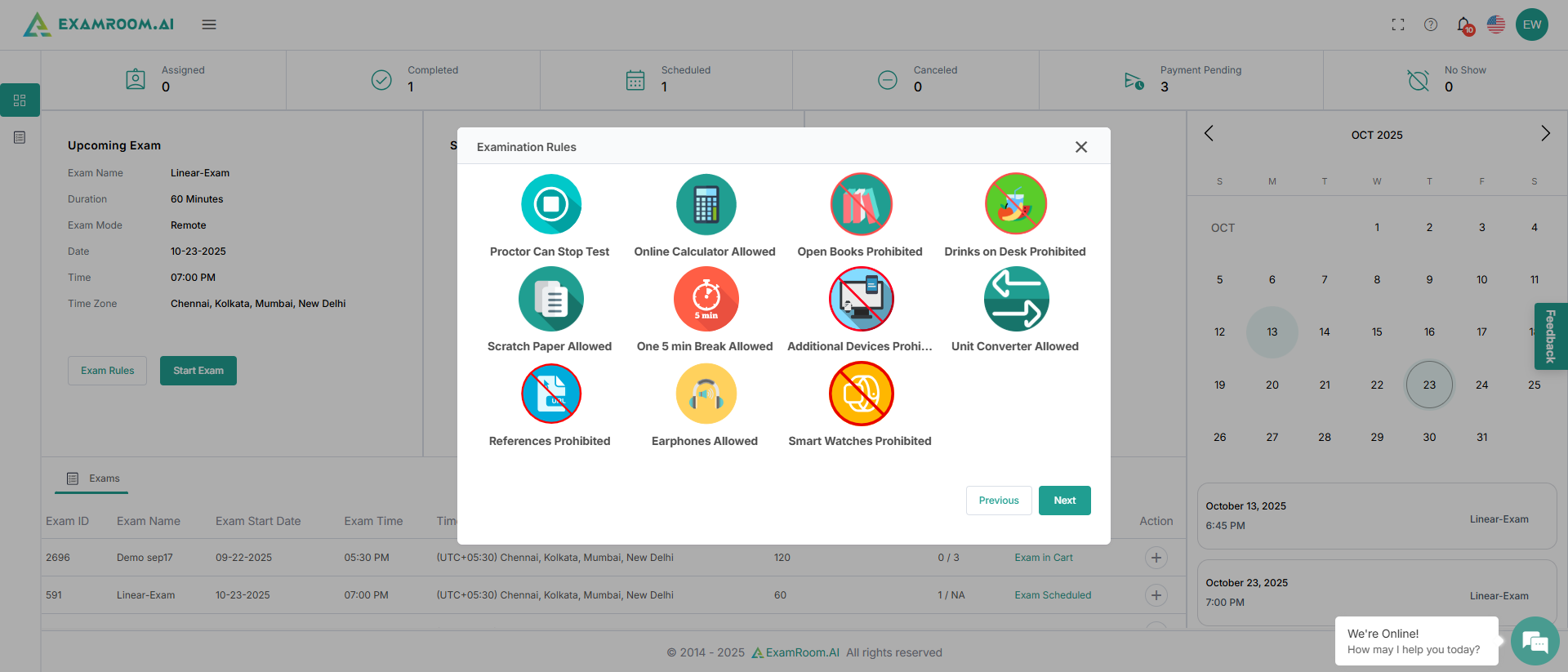
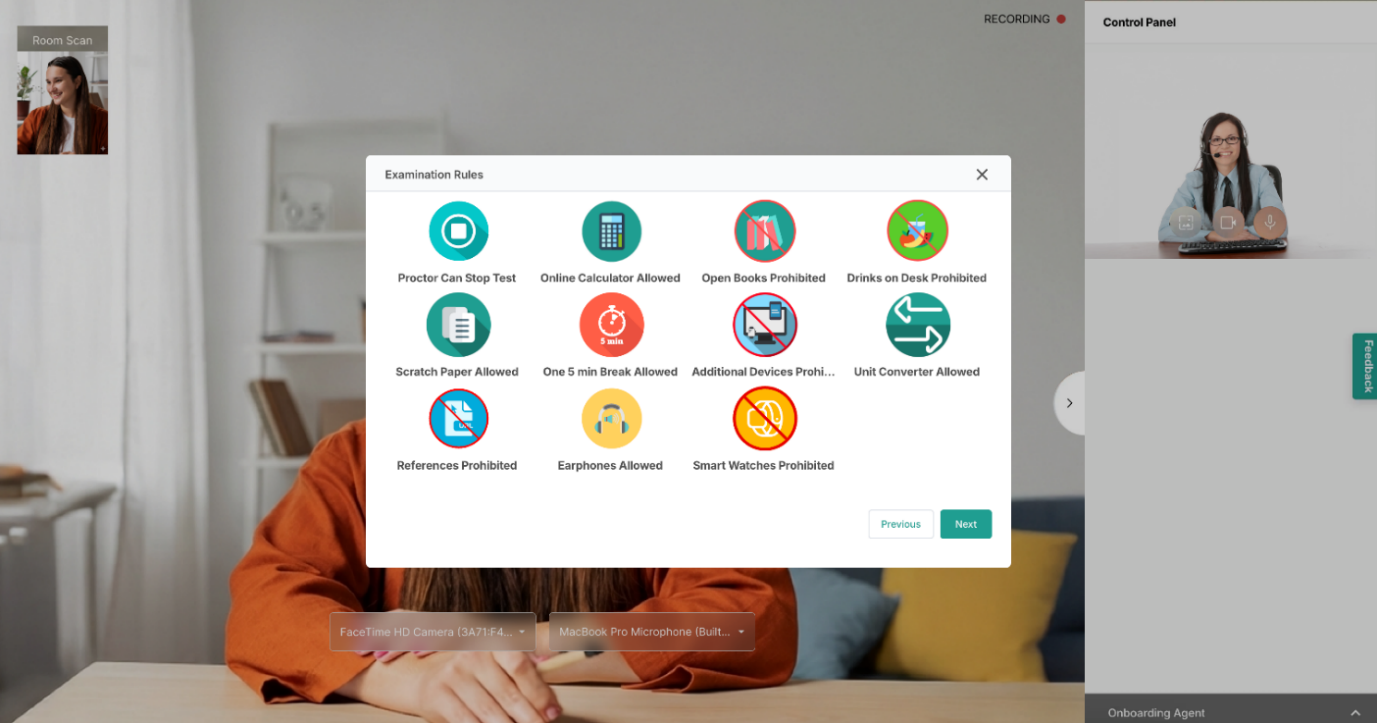
After acknowledgement, the Examination Rules appear. Review and click Next to proceed.
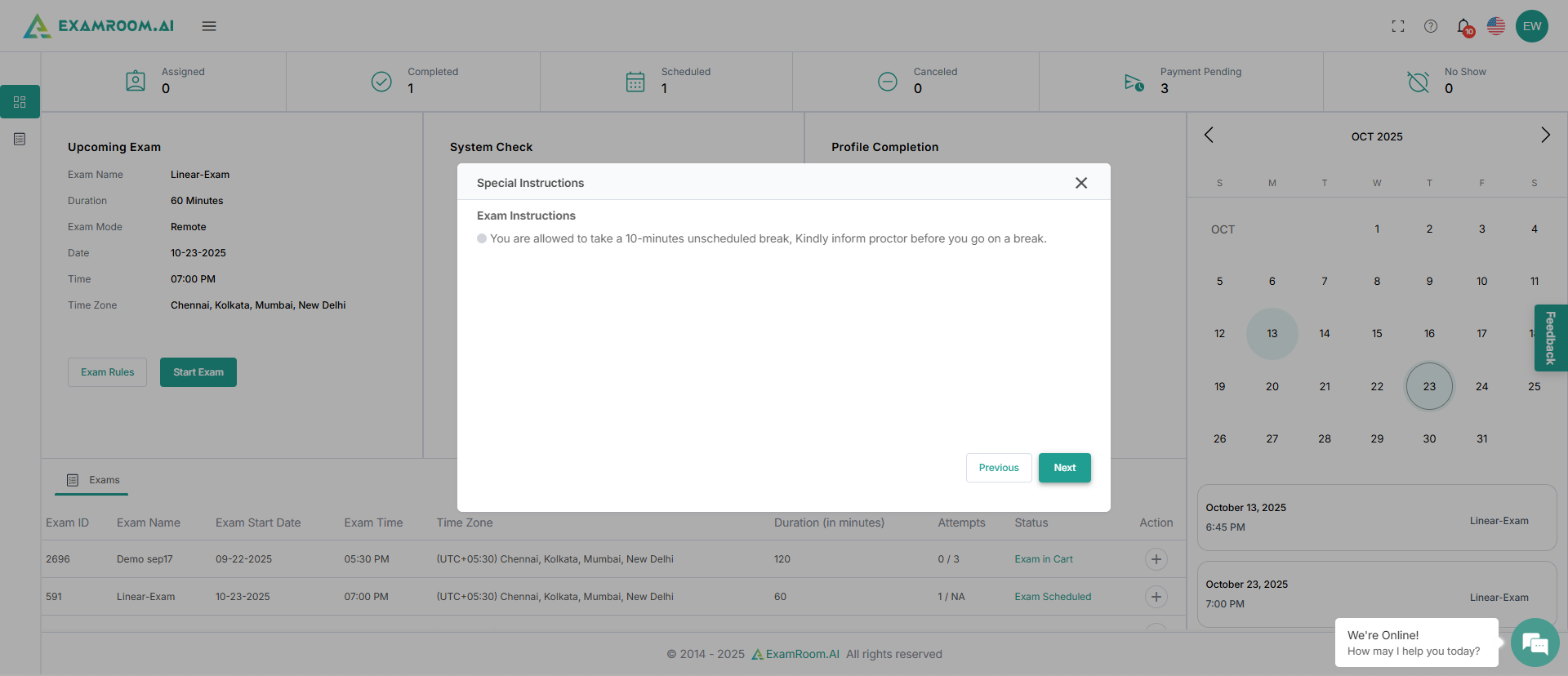
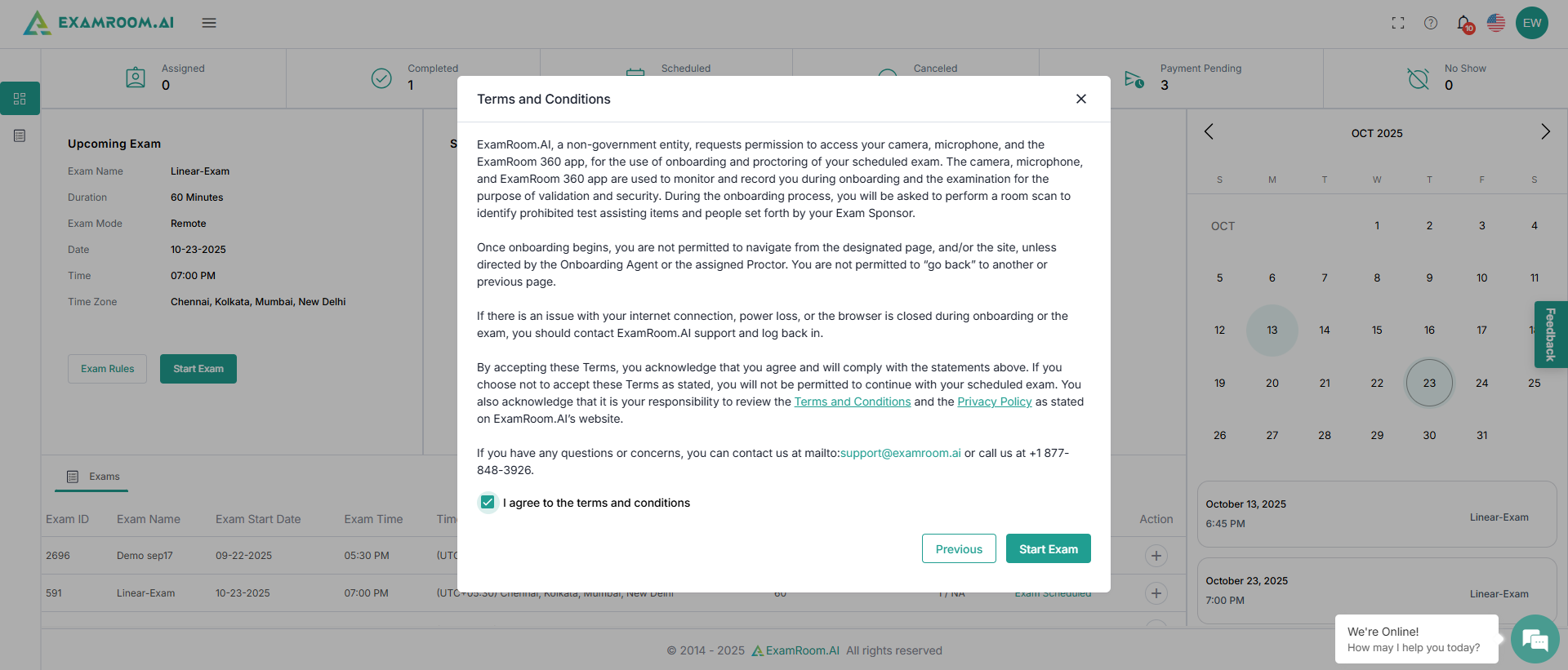
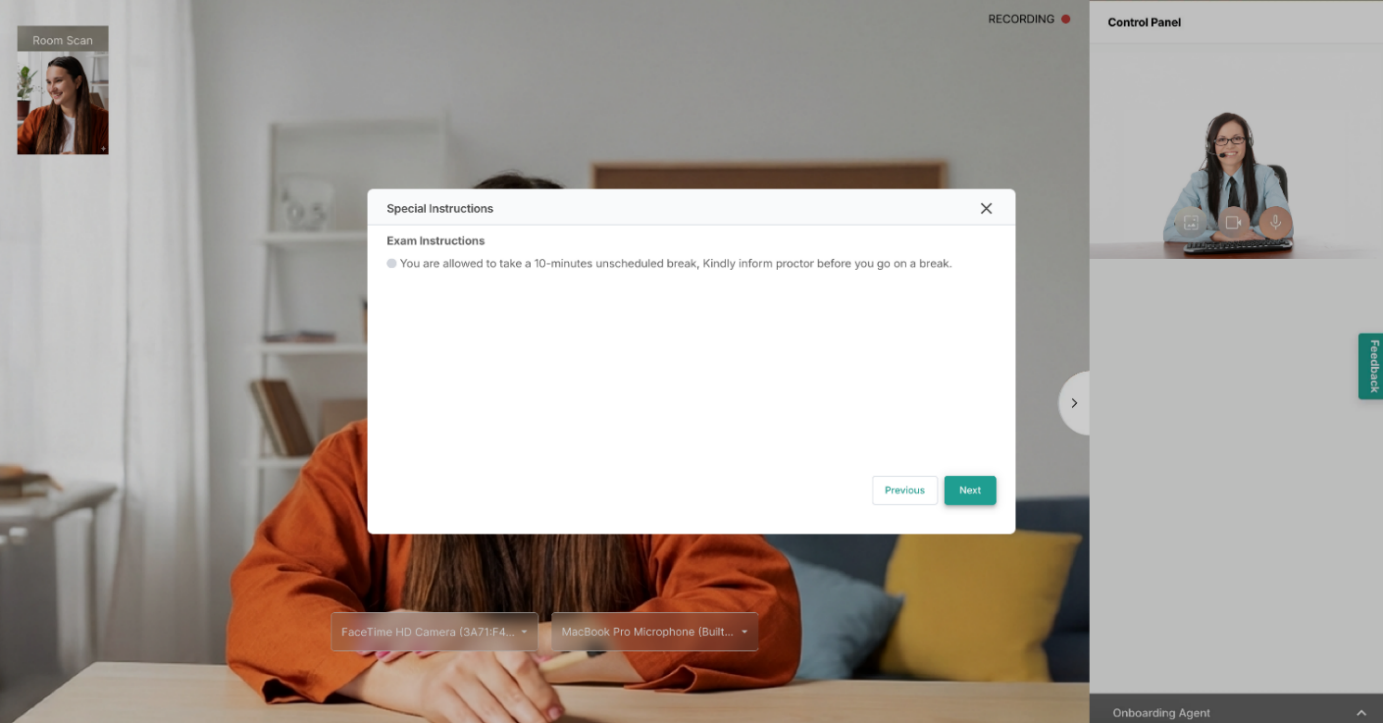
Read any special instructions provided; if none are given, review the Terms and Conditions. After reading, check the box to agree to the Terms and Conditions. Then, click "StartExam" to begin.
System check
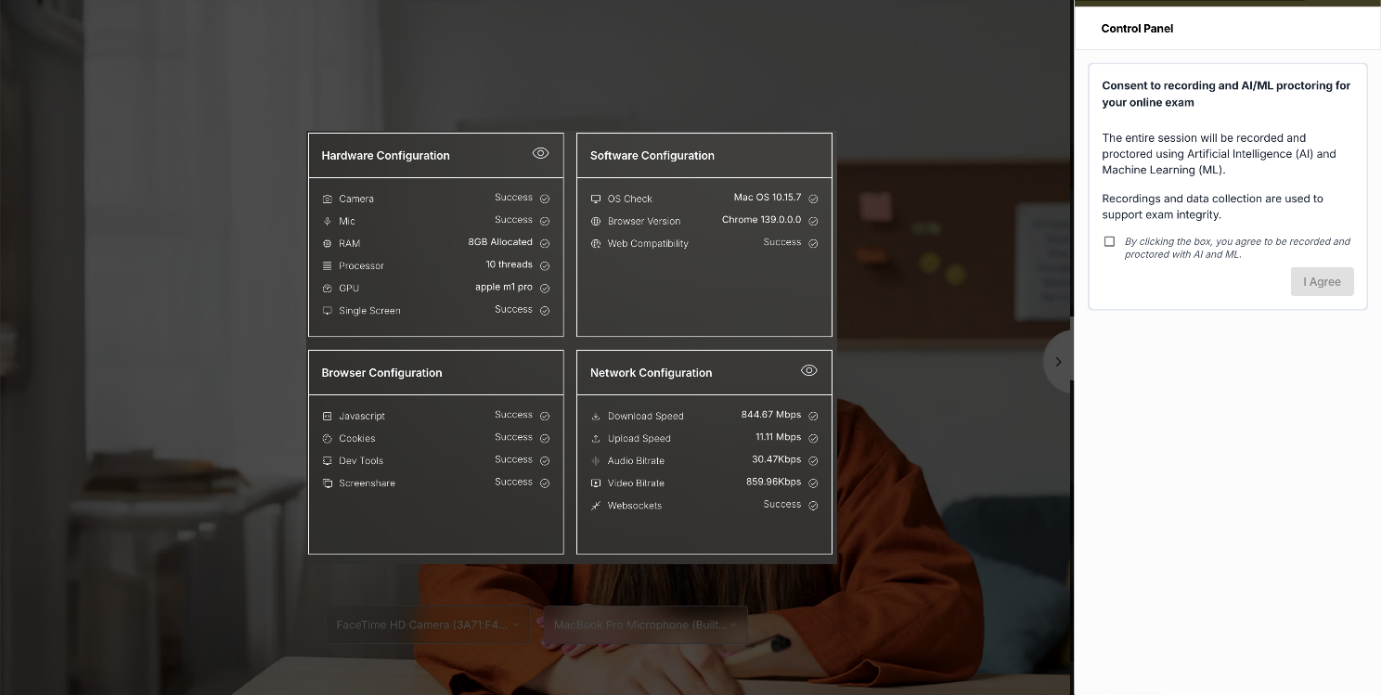
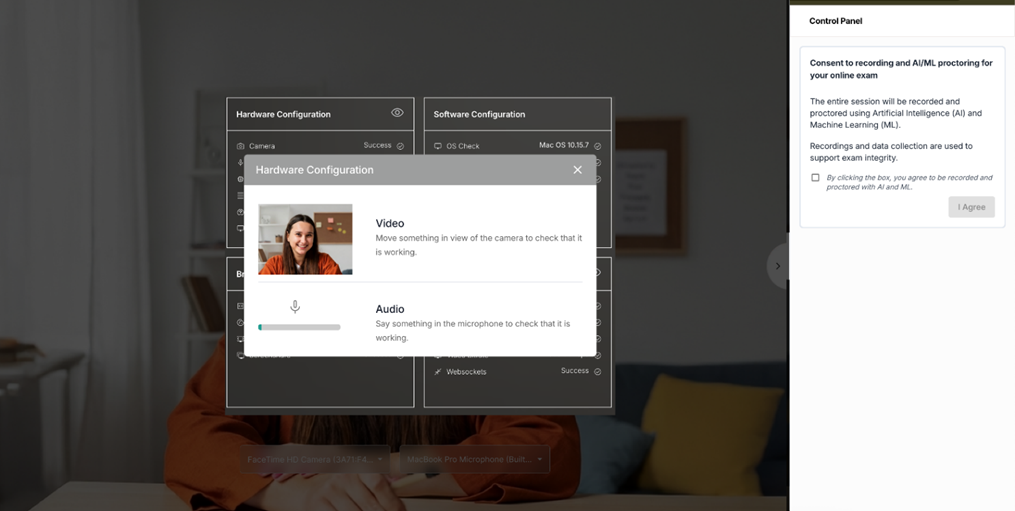
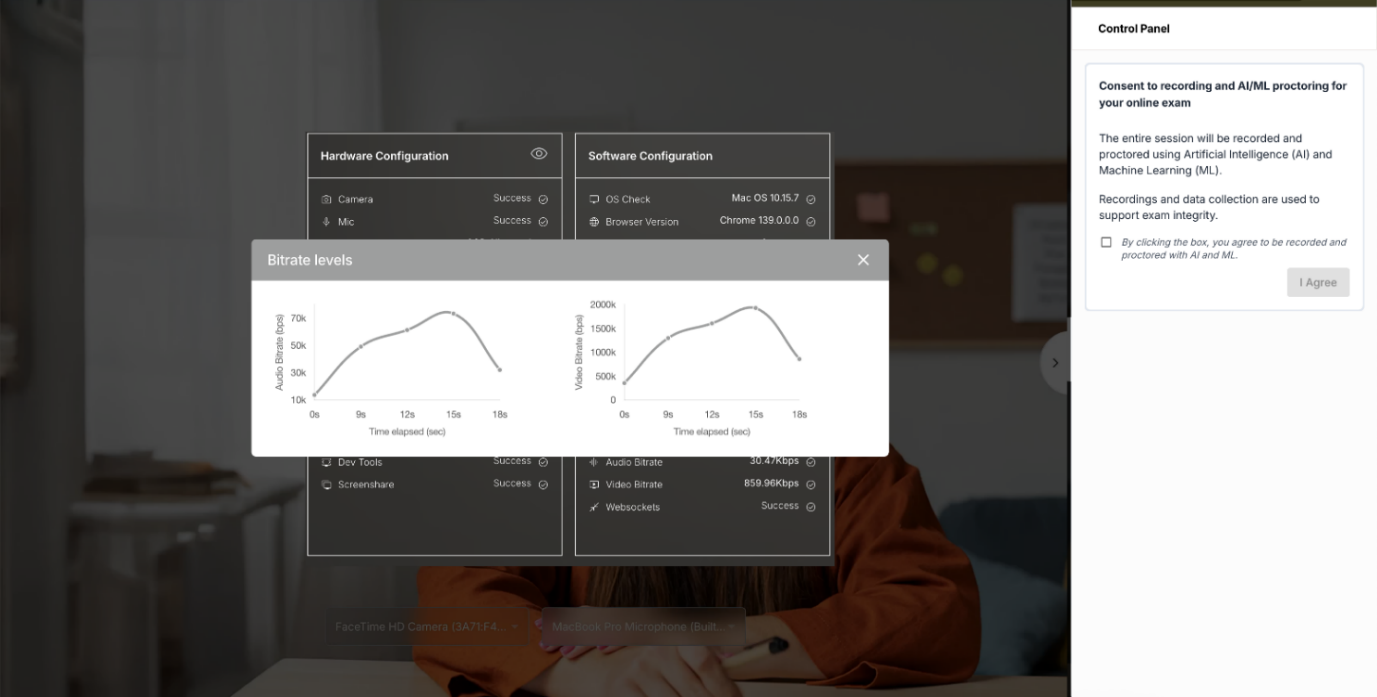
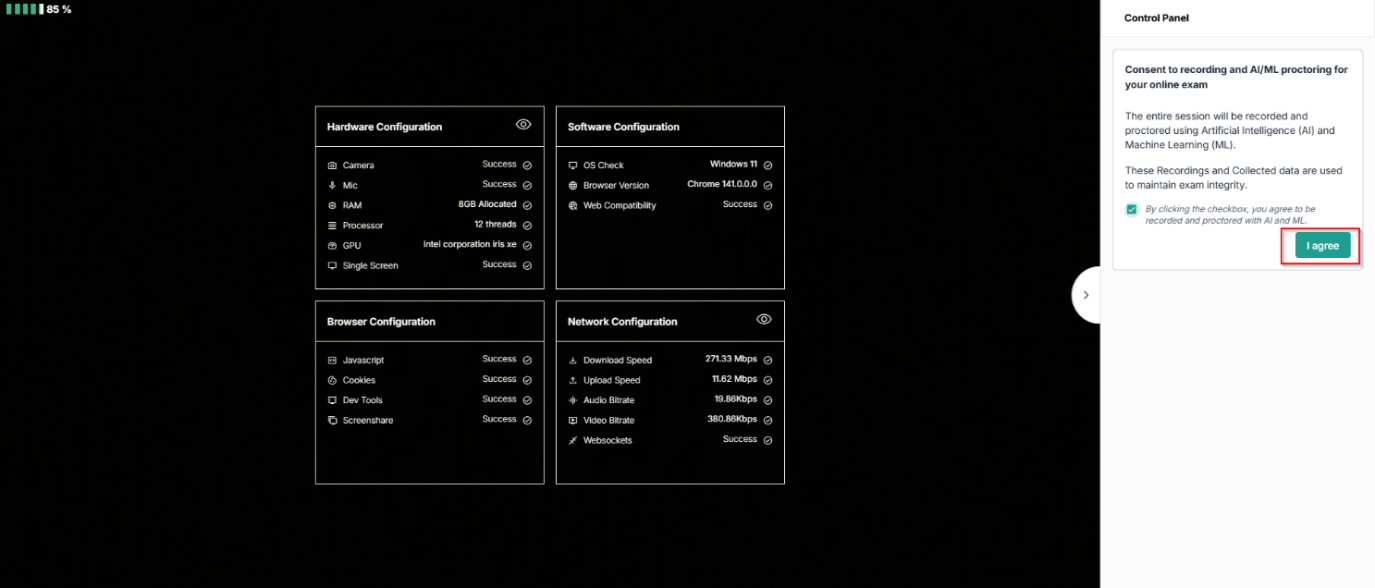
After clicking StartExam, a system check will run before proceeding. The screen displays the hardware, software, browser, and network system configurations. Please click System Check to view the detailed process. You can also check these links for camera and microphone permissions: Chrome Permissions, Edge Permissions, and Firefox Permissions.
Click the ViewIcon placed next to the Hardware Configuration heading. It shows the camera and audio functioning. Follow the displayed instructions to verify these configurations.
Click the ViewIcon placed next to the Network Configuration heading. It shows the bitrate levels of the audio and video.
Now, in the control panel, select the checkbox and click IAgree to provide consent for recording and AI/ML proctoring.
Onboarding
Sharing Your Screen
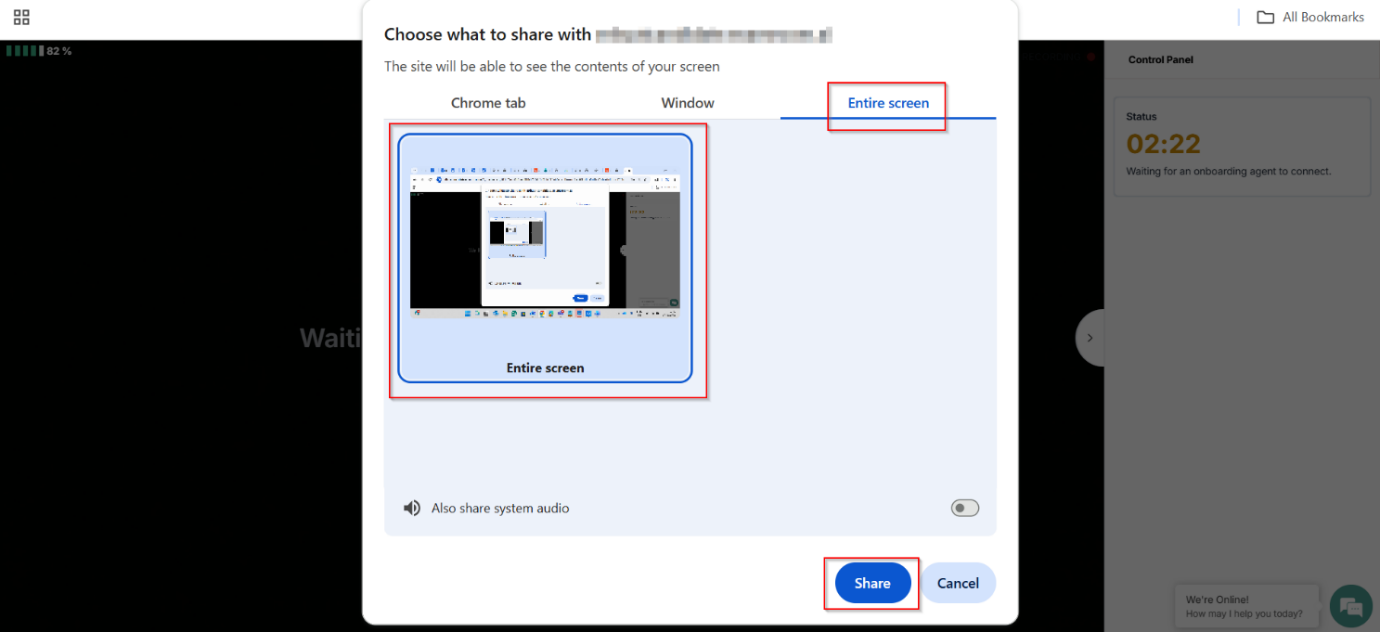
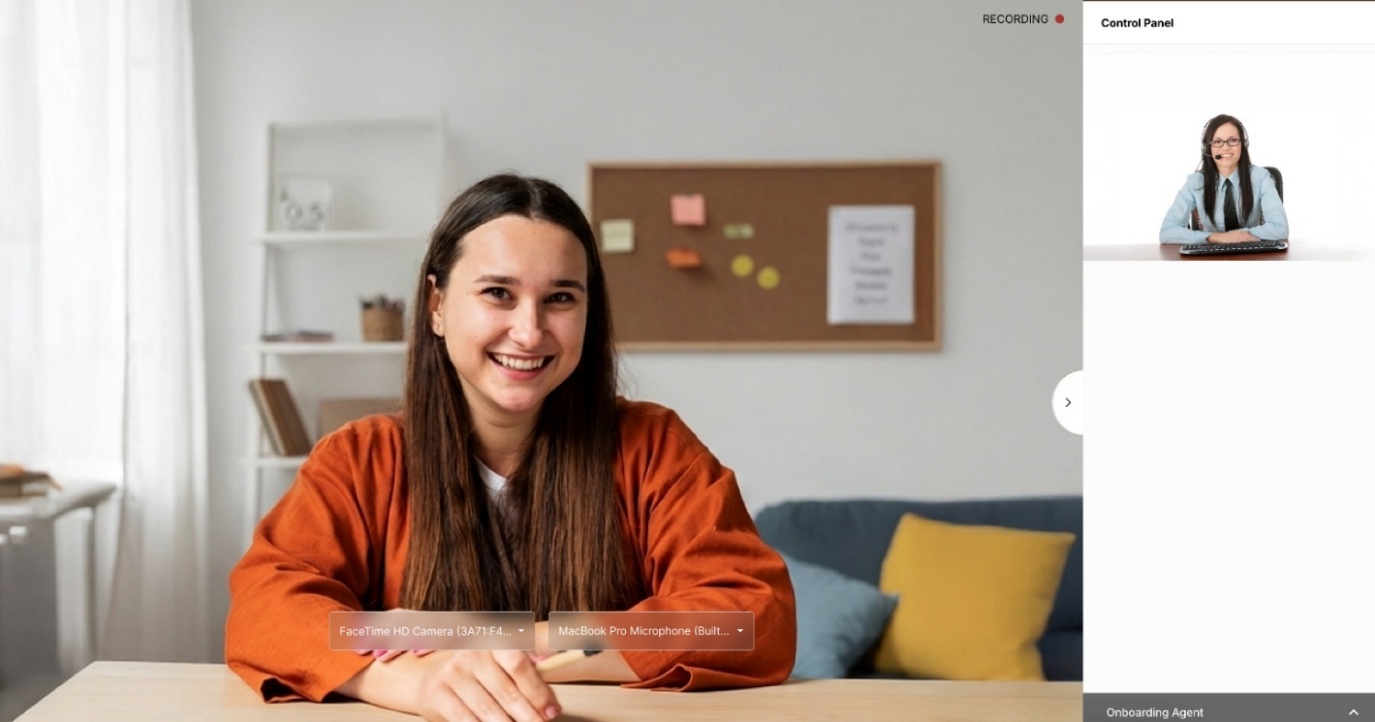
By clicking I agree, a pop-up appears for the screen share. Select the Entire Screen option, click the Entire Screen Preview in the center of the screen, and click Share.
The status in the control panel shows waiting for the onboarding agent, and once the OBA (Onboarding Agent) is connected, you will be able to see them in the control panel.
ID Verification
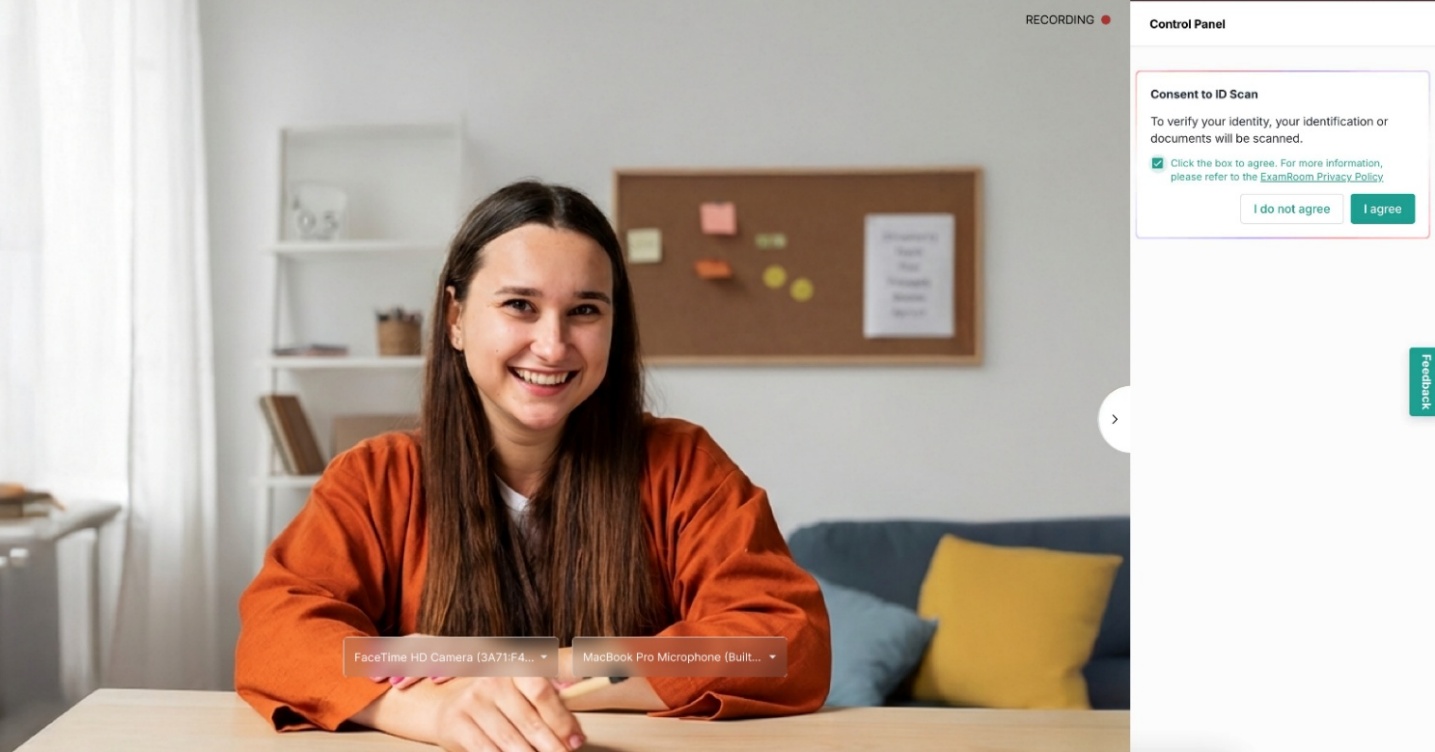
To start the ID verification steps, A consent message will be displayed in the control panel to provide consent for the ID verification.
Select the checkbox and click Iagree to provide consent for verifying your ID.
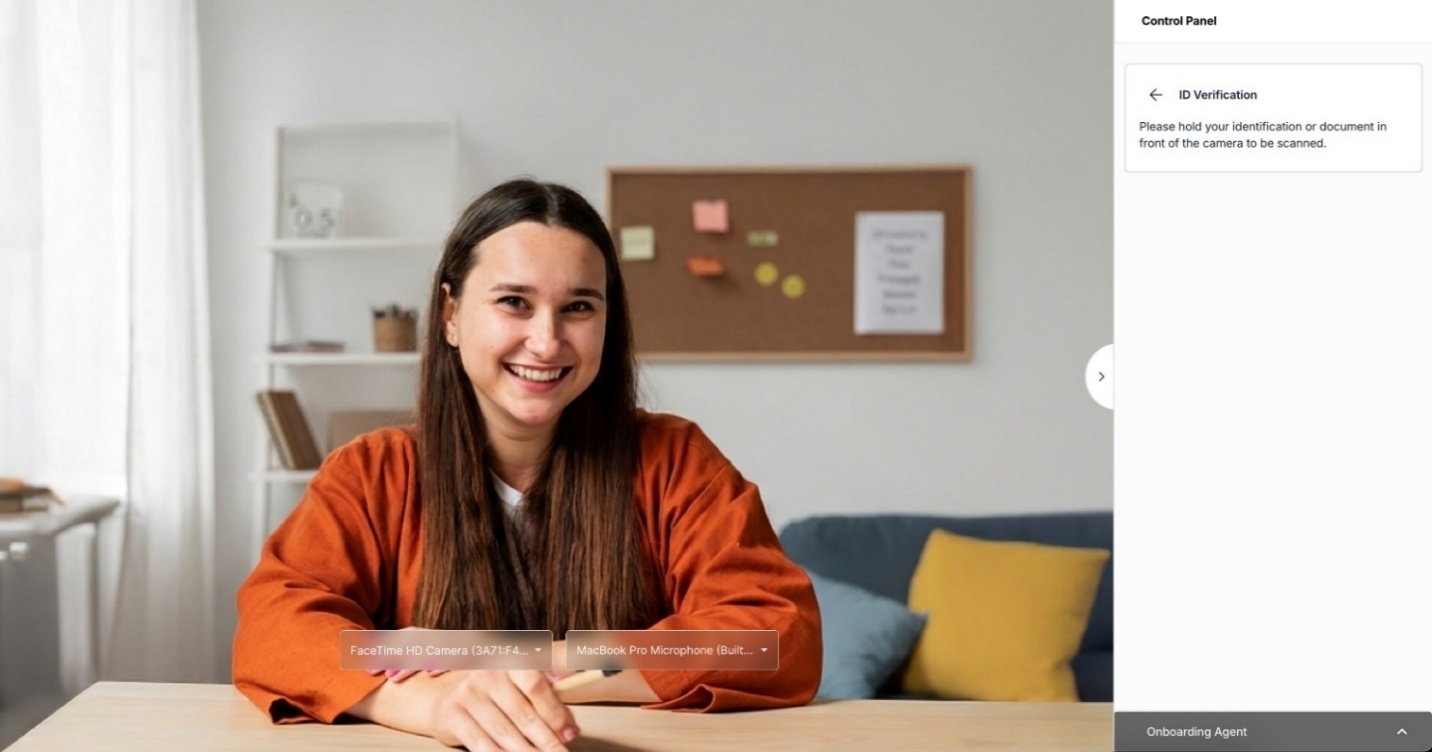
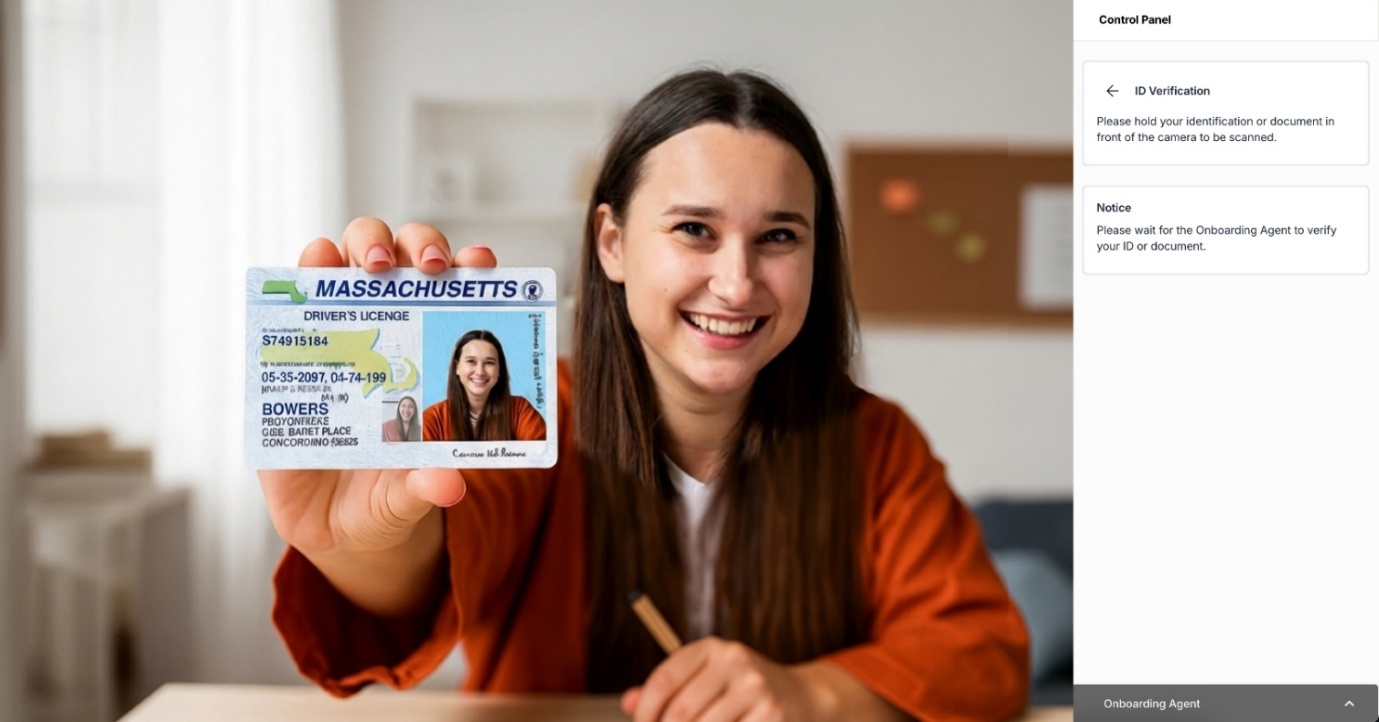
Your ID verification has started.
Hold your photo ID in front of the camera and wait until the OBA verifies it.
Face Verification
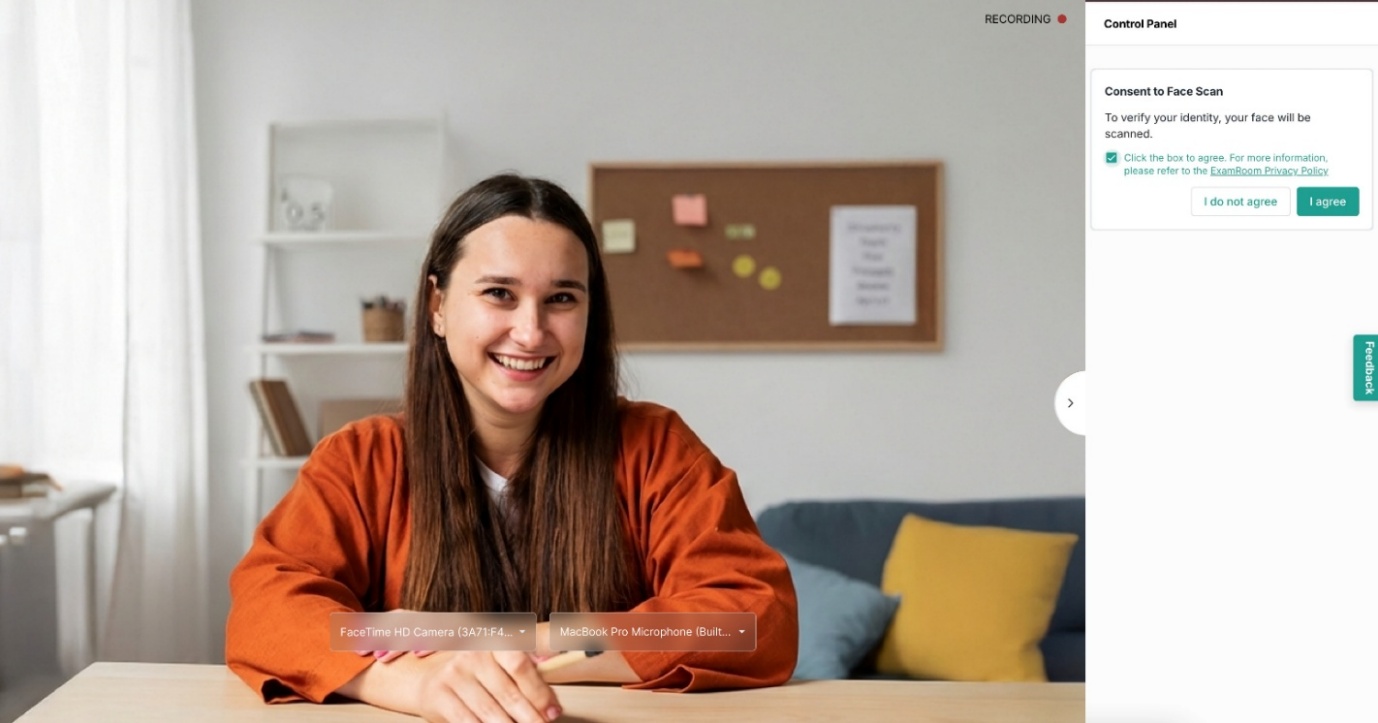
To begin the face verification steps, a consent message will be displayed in the control panel to provide consent for the face verification.
Select the checkbox and click Iagree to provide consent for your face verification.
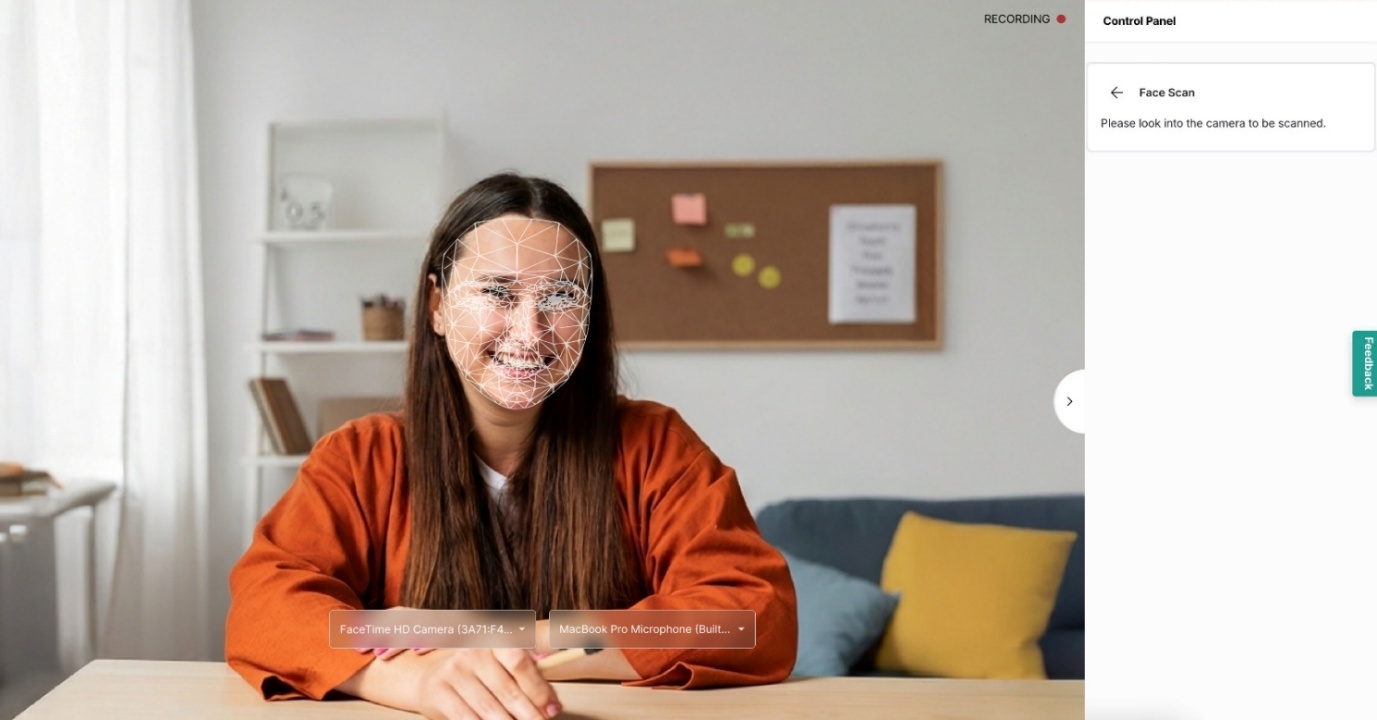
As directed by the OBA, look directly into the camera while a photo of your face is taken.
Exam360 and Room Scan
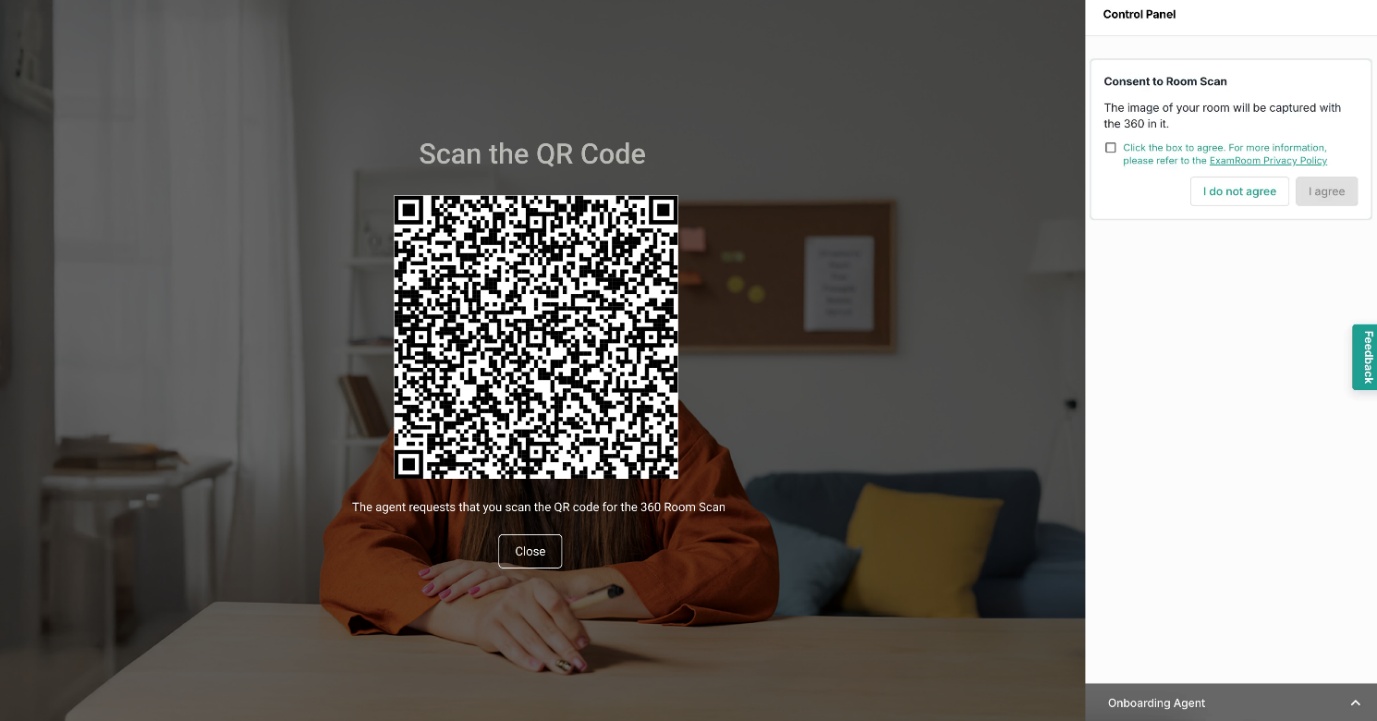
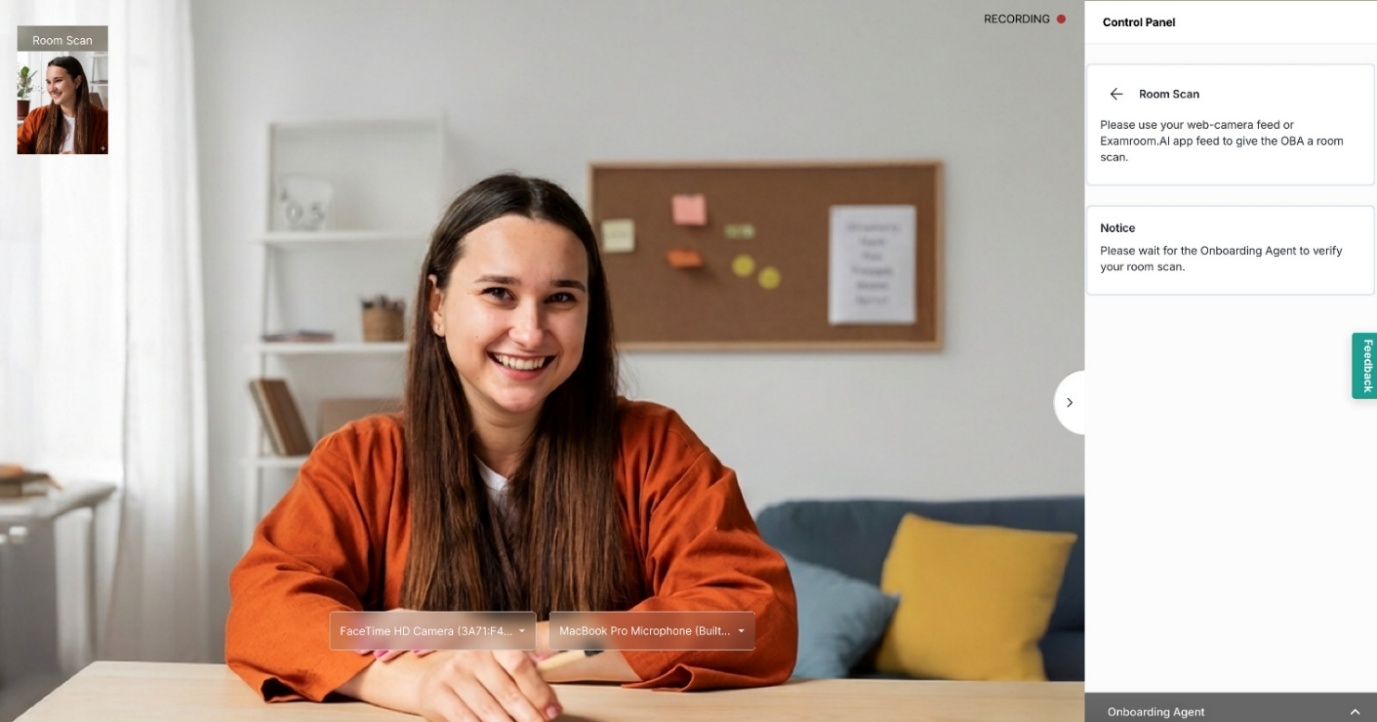
Now, to begin the process of Room Scan, the OBA triggers a QR Code display on your screen for you to scan and open the 360 Room Scan app on your smartphone (Android/iPhone device), and place your phone as suggested by the OBA so they can see your entire testing area(for a 360 view), including your computer.
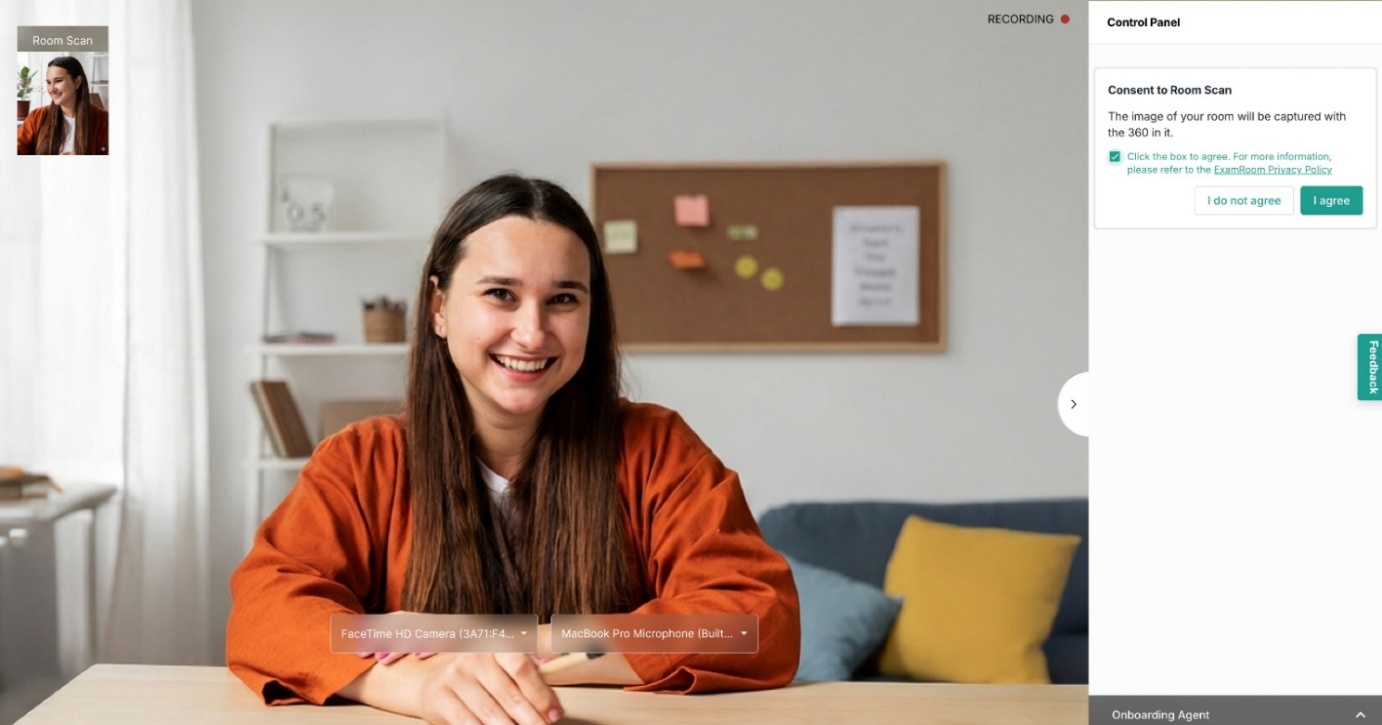
Next, select the checkbox and click "Iagree” to provide consent for a room scan.
Follow the room scan procedure as directed by the onboarding agent.
Exam Rules and Instruction
Once the required verification process is completed by OBA, you will be transferred to a proctor.
As the OBA initiates the transfer process, you will be provided with exam rules to go through. Click Next after reading the exam rules to go to the exam instructions.
Read through any special instructions and click Confirm to start your exam.
Proctoring
Proctor Session and Test Console Options
After being connected to the proctor, the test console screen will appear. A pop-up will prompt you to enter full-screen mode. Click Okay to continue.
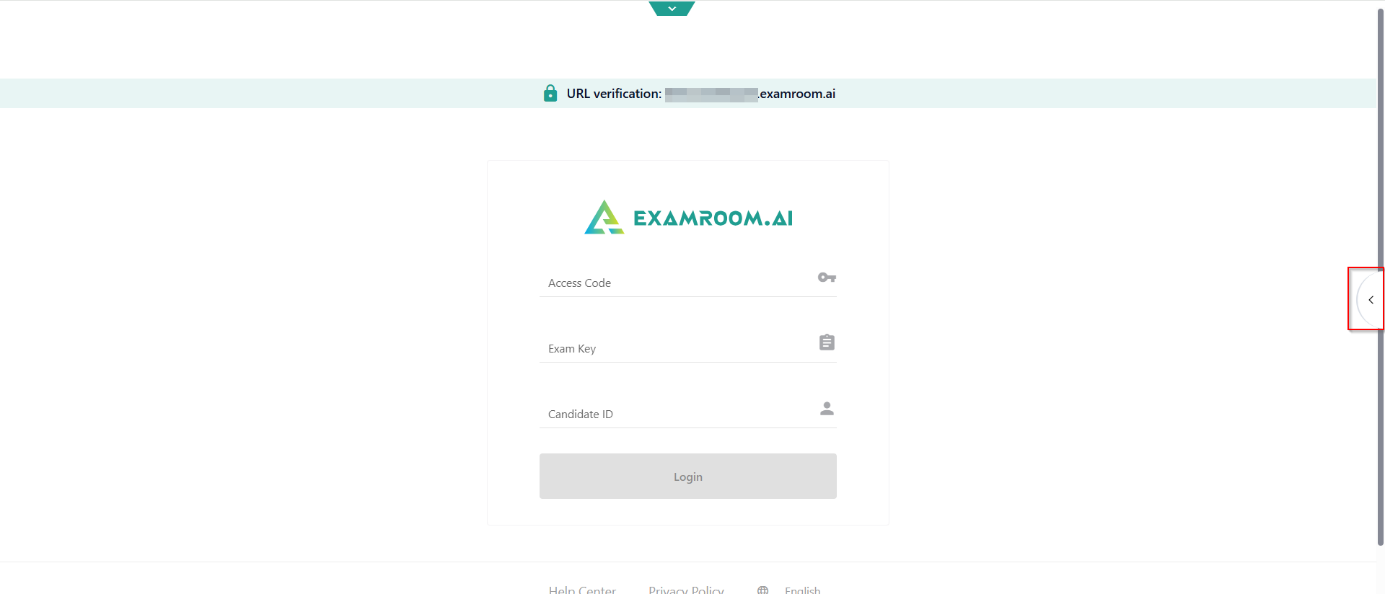
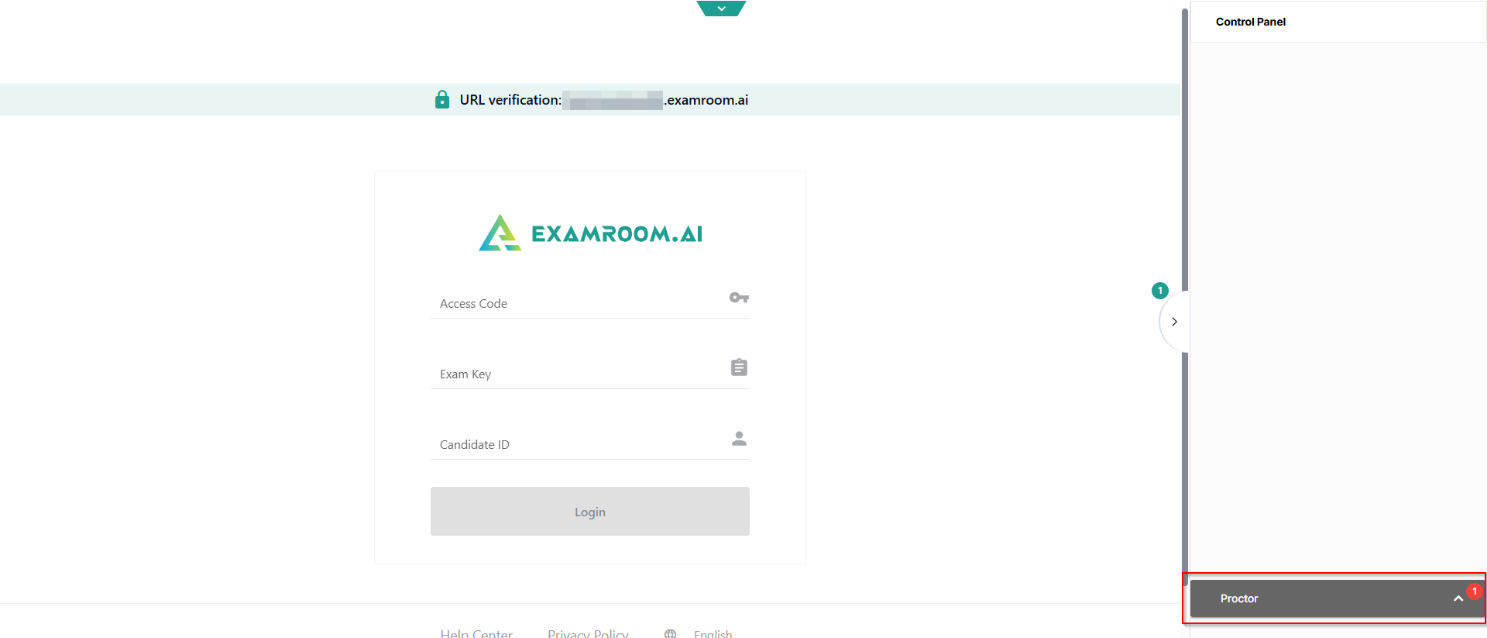
When the test login screen appears, please wait for the proctor to complete the Access Code, Exam Key, and Candidate ID fields.
You can contact the proctor using the chat at any point during the exam. Click the arrow icon to open the control panel.
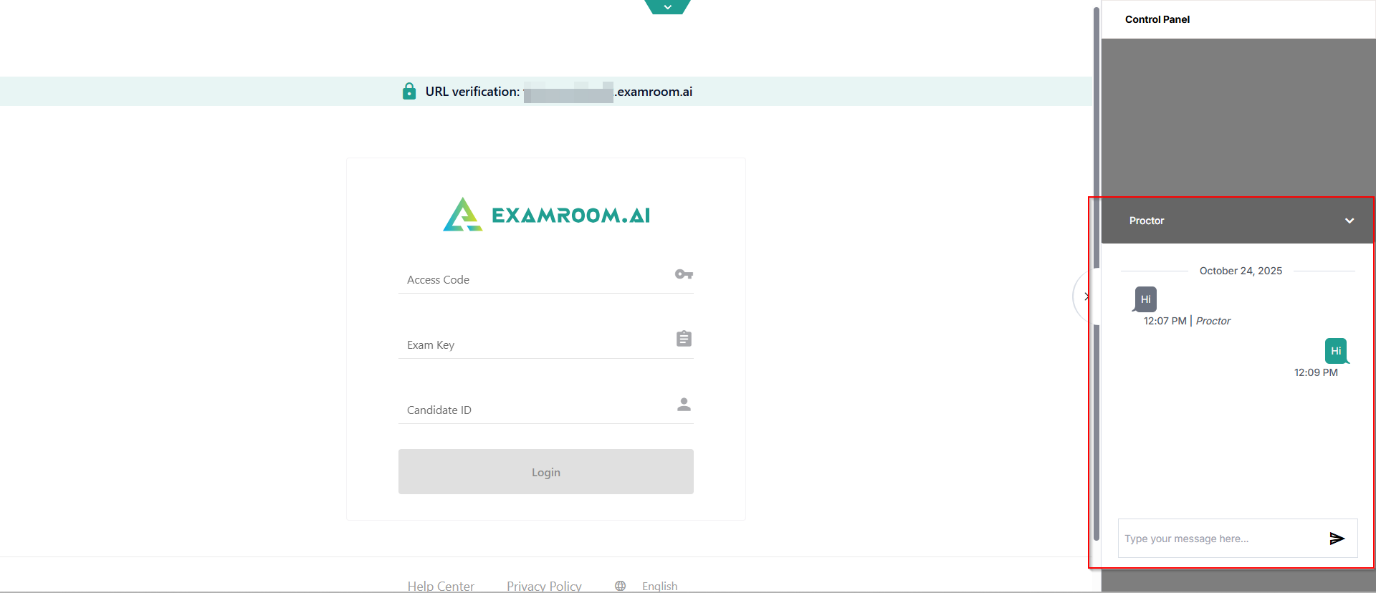
Click on the chat bar here to open the chat box and drop a message to the proctor if any assistance is required.
You will also be notified if the proctor drops a message to you.
Click to open the chat box and reply or send a message to the proctor. The chat option will be active throughout your exam session.
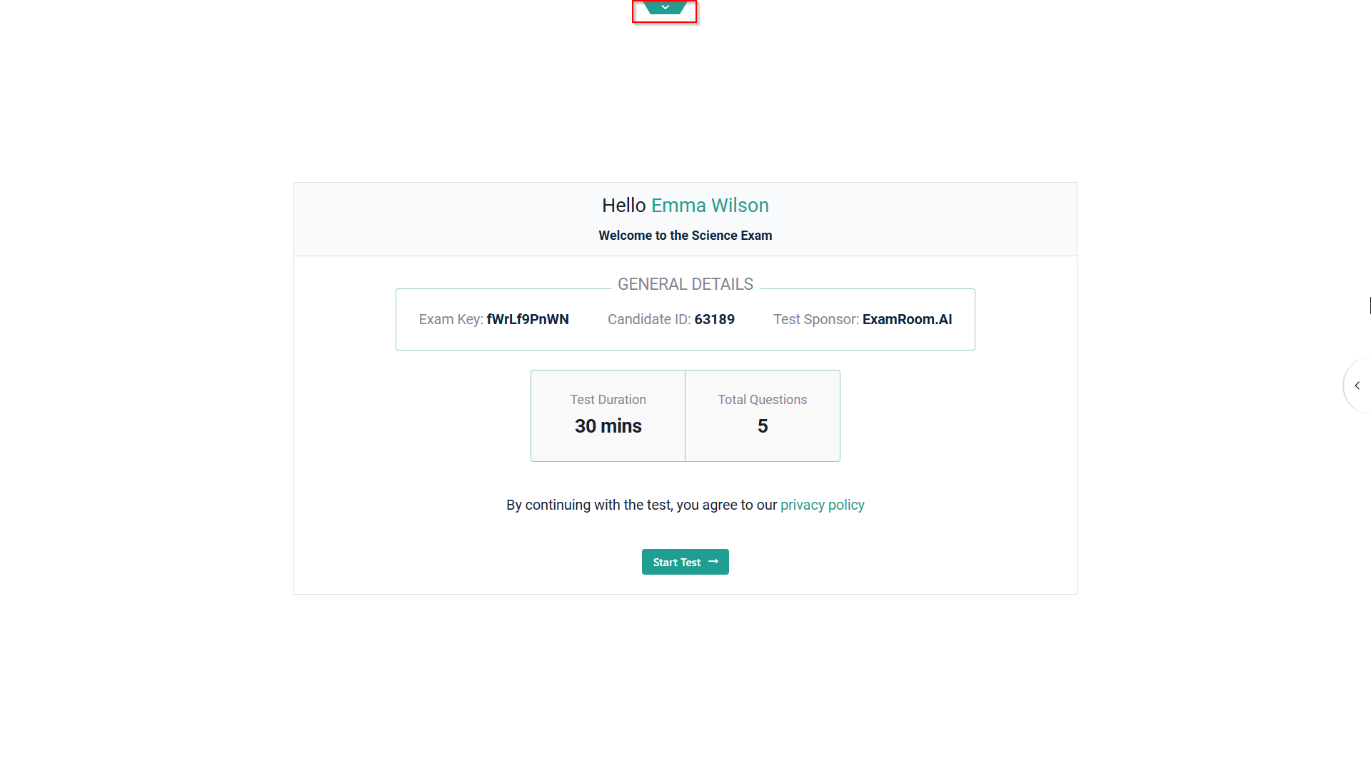
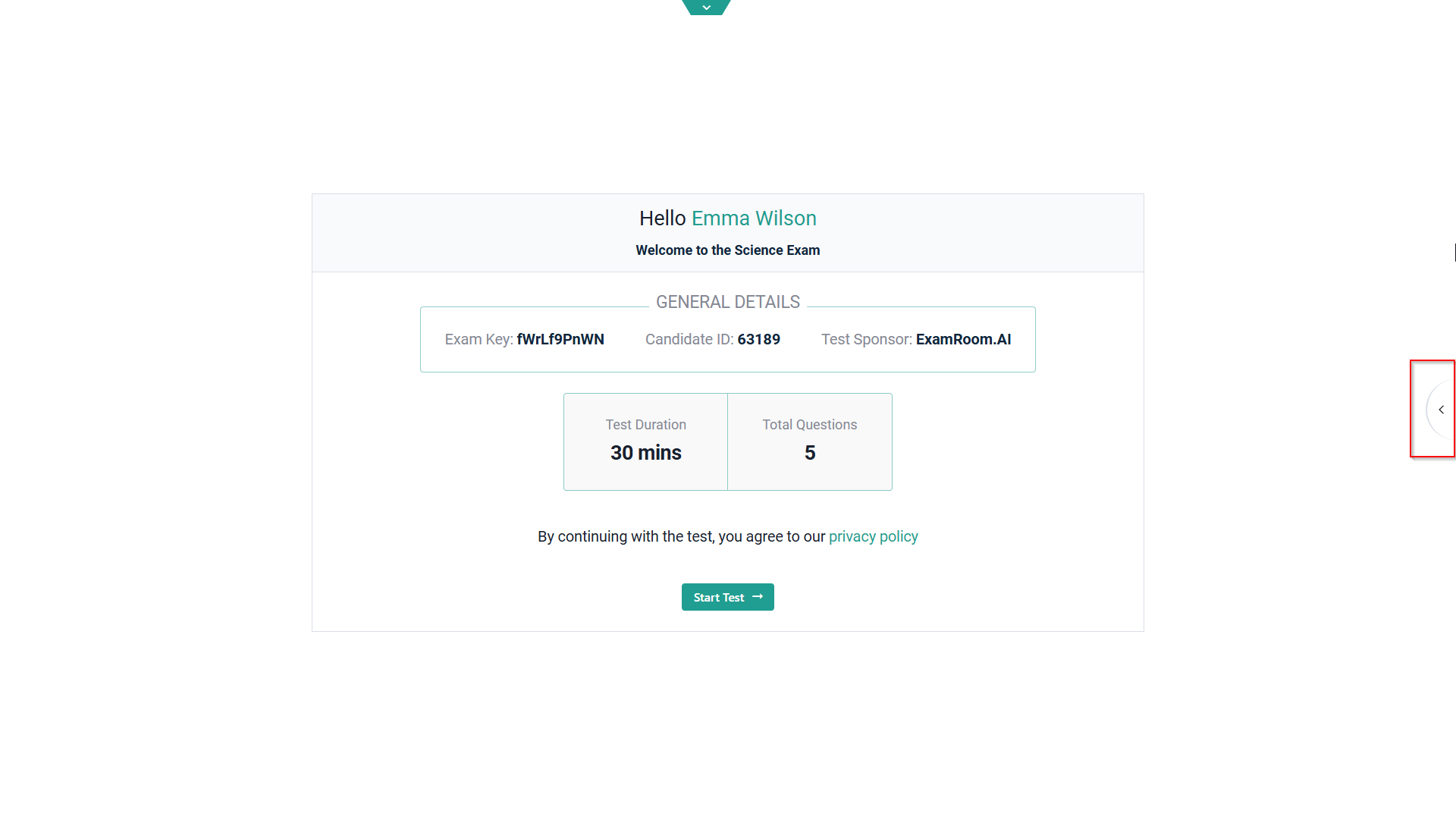
Now, as the proctor enables your access to the exam, you will be able to see a welcome screen, displaying the exam details.
Click the arrow to open the drop-down and explore the options available.
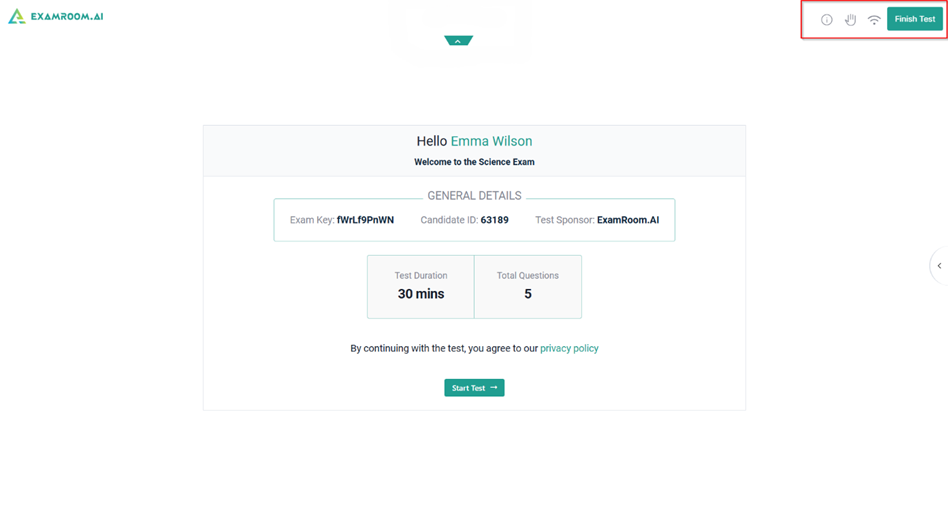
In the drop-down menu, review the following proctor session options:
Select the Information icon to view exam details.
Select the RaiseHand icon to contact the proctor during the exam.
Select the Wi-Fi icon to check your network connectivity status.
Click FinishTest to complete and submit the exam at any point during the session.
Start Test – Taking Your Exam
After you verify your exam's general details, click StartTest to begin the exam.
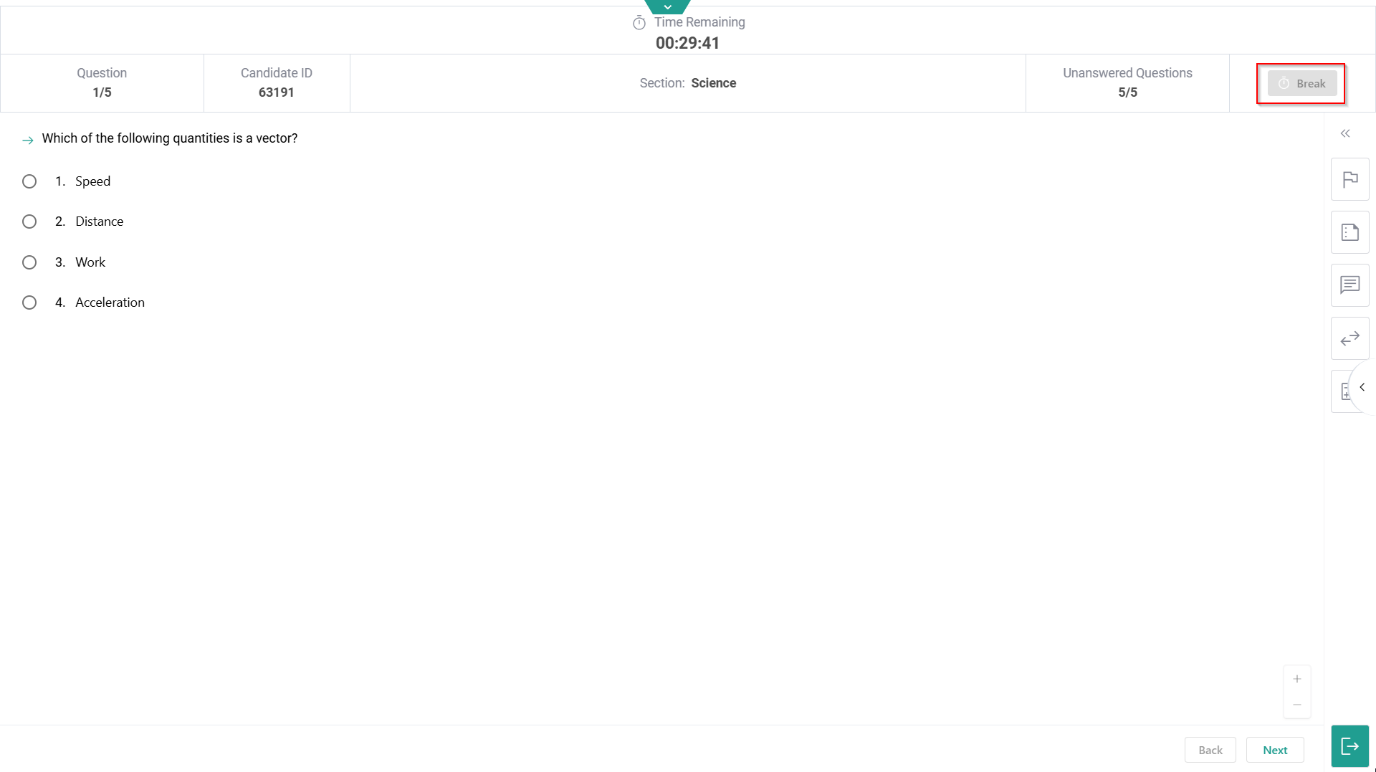
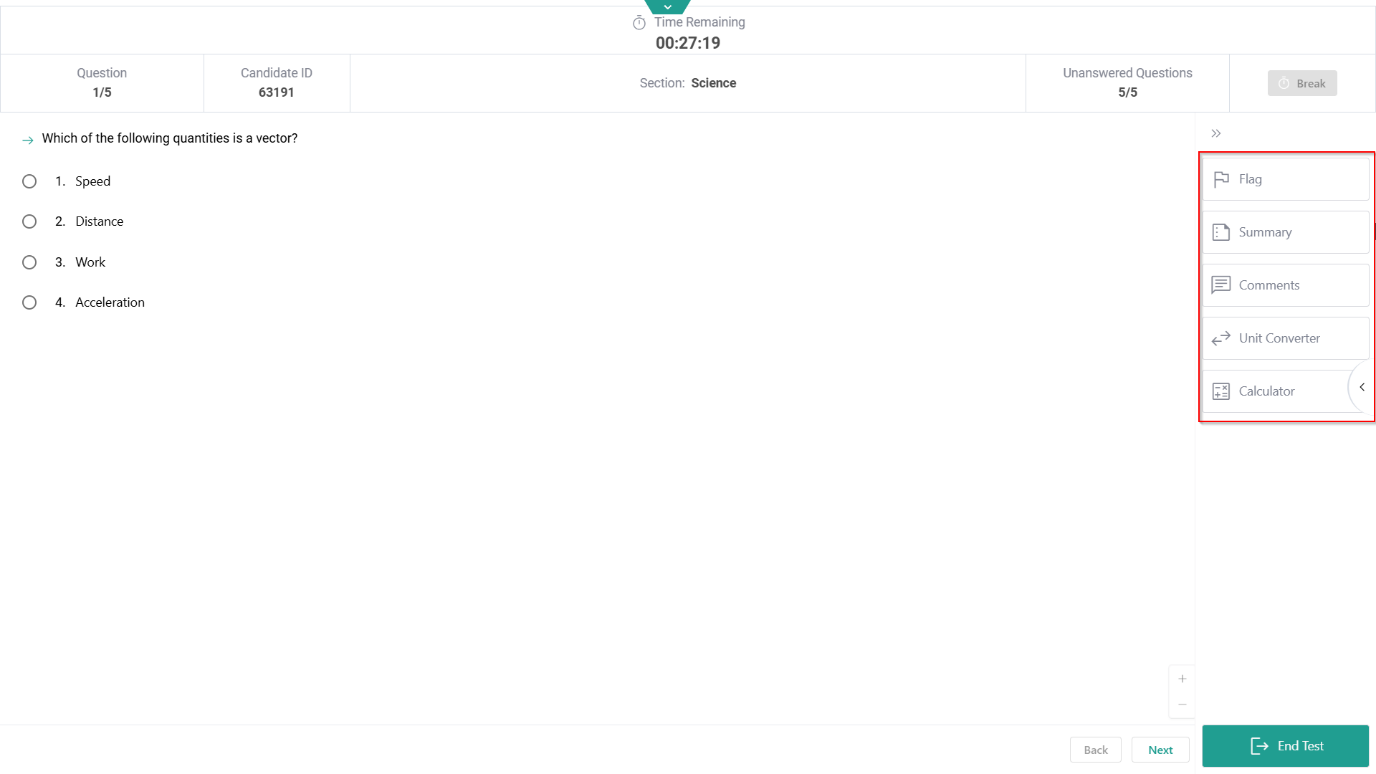
On the next screen, you'll see the number of questions, your Candidate ID, time remaining, and questions answered.
You may find a break icon (depending upon your exam sponsor and exam type), click on the break button to apply for a break during the exam. You will not be able to answer questions during the break period.
Click the arrow icon on the right-side bar to open the proctor chat during the exam and message the proctor if you need assistance.
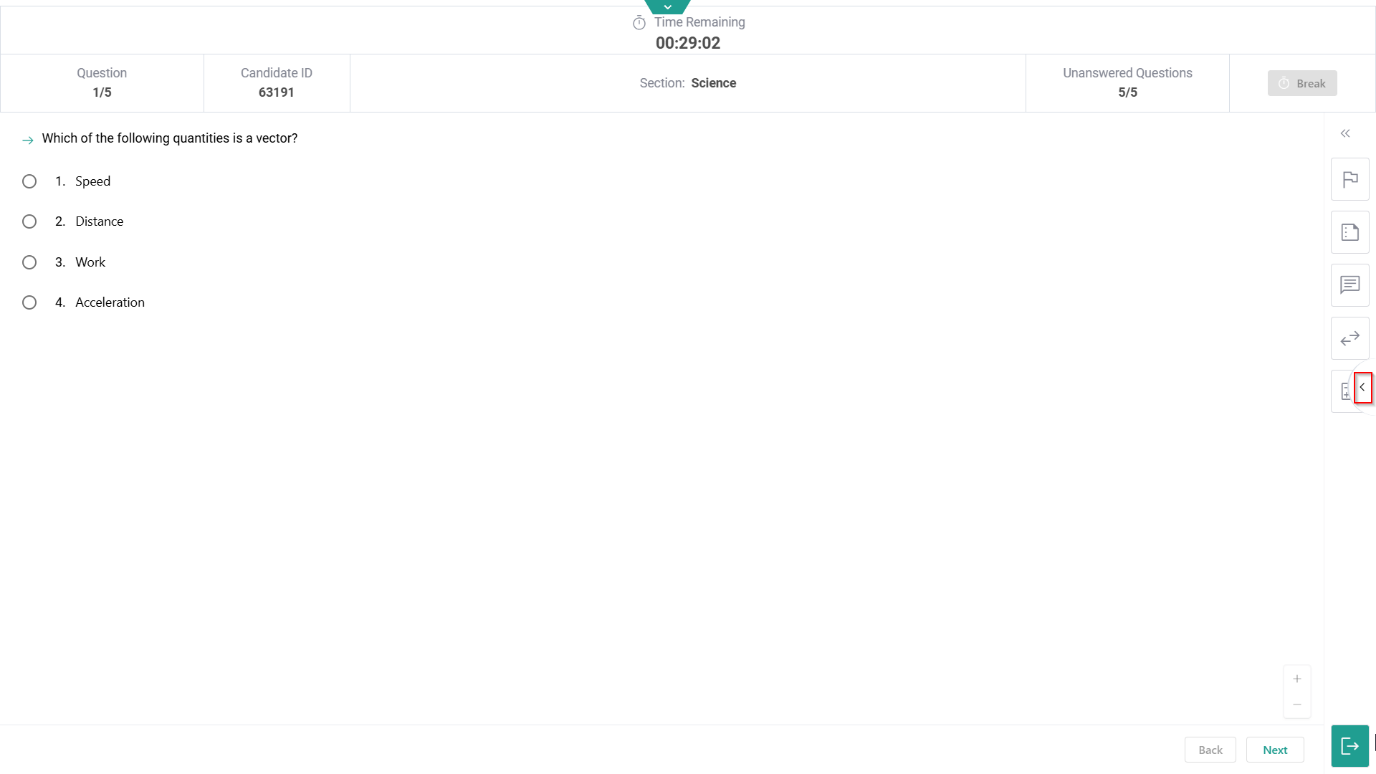
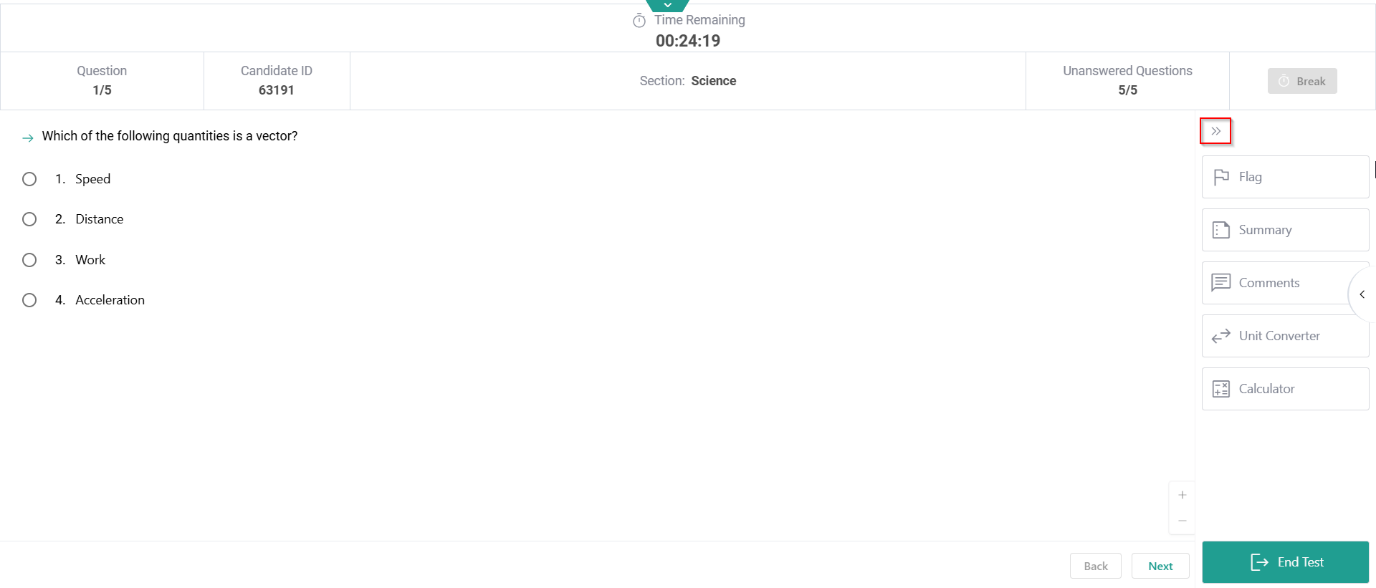
On the right side of the screen, click the arrow to open the widget toolbar to access the widget tools allowed during the examination.
As you click the arrow to open widgets, you can see multiple widgets (may vary as per your test sponsor). The first one given here is a flag; you can use this to flag a question to revisit later.
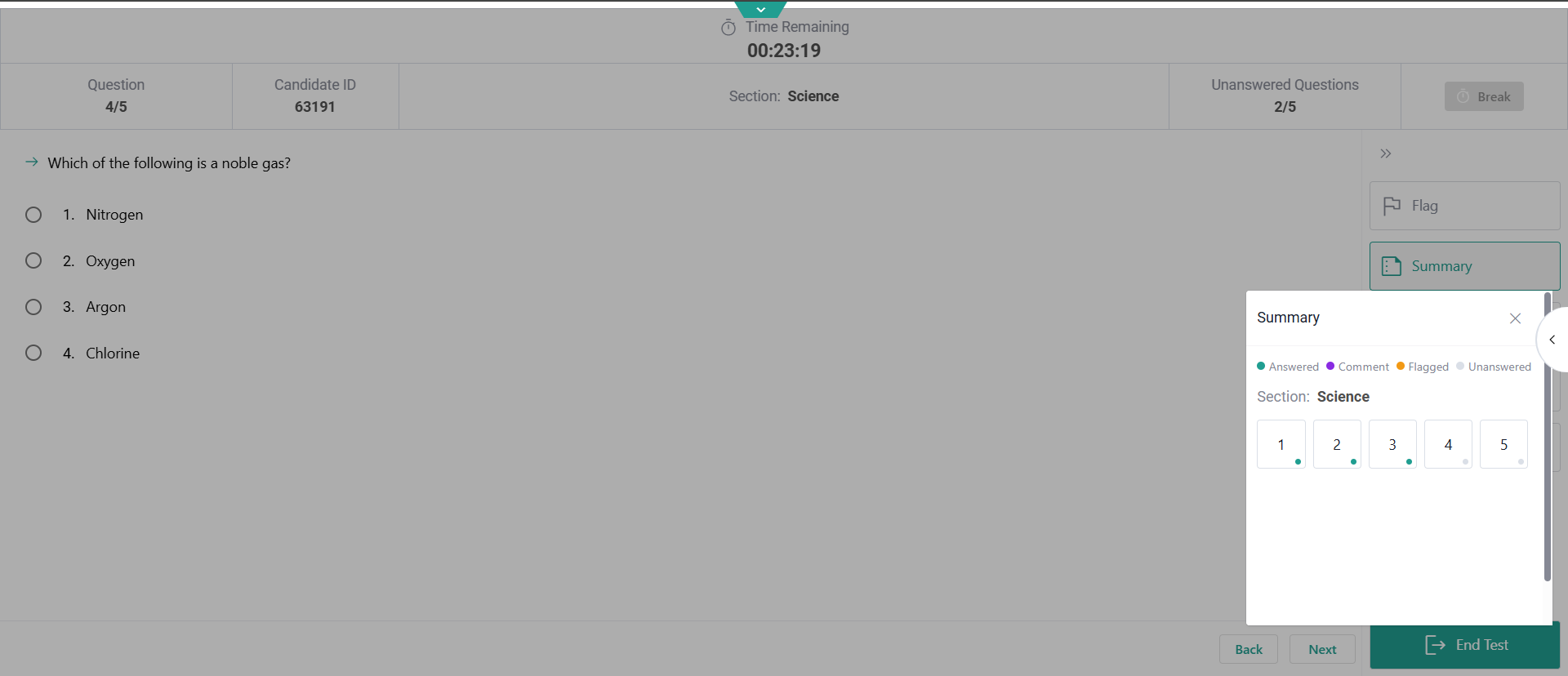
Click Summary to view an overview of your exam. It shows which questions you've answered, commented on, flagged, or left unanswered.
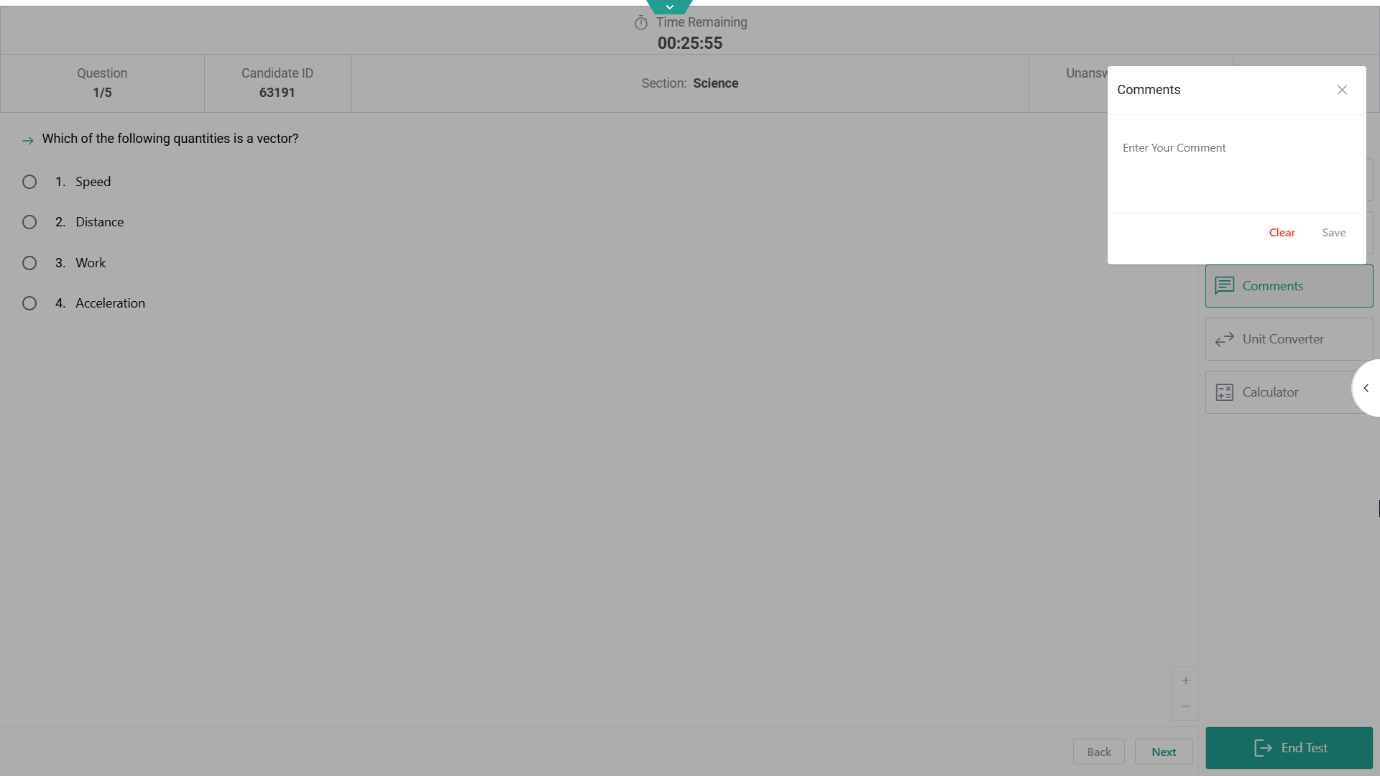
Click Comments to add a comment to any question. You can revisit your comments later, and they will also appear in the exam summary.
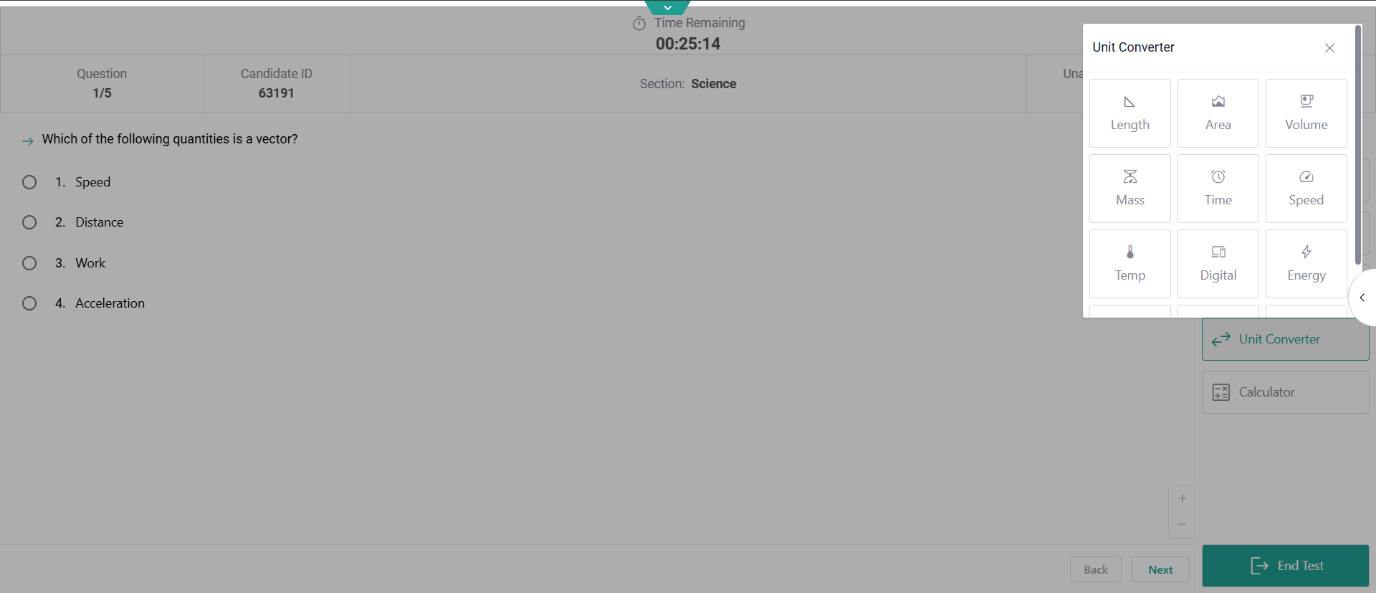
Click UnitConverter to open a list of options to perform conversions as needed.
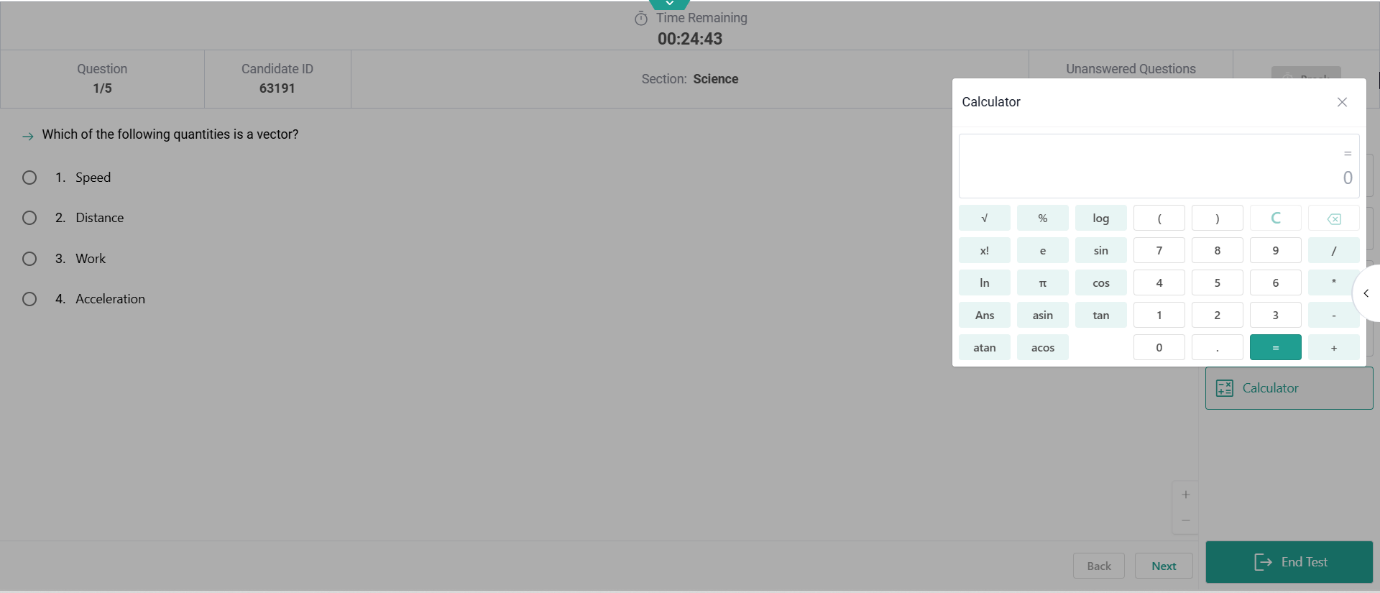
Click Calculator to open the calculator and use it during the exam.
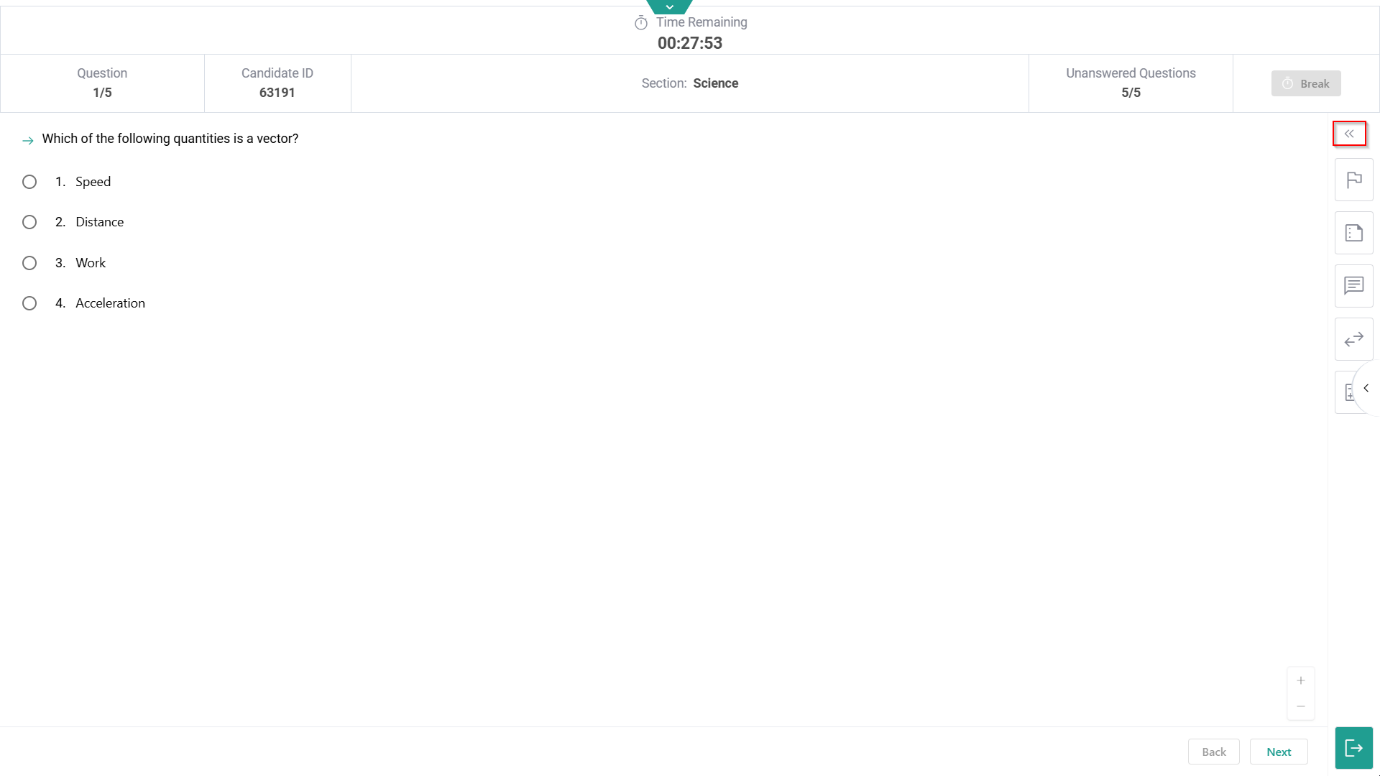
Click the arrow icon to close the widget bar on the right side of the screen.
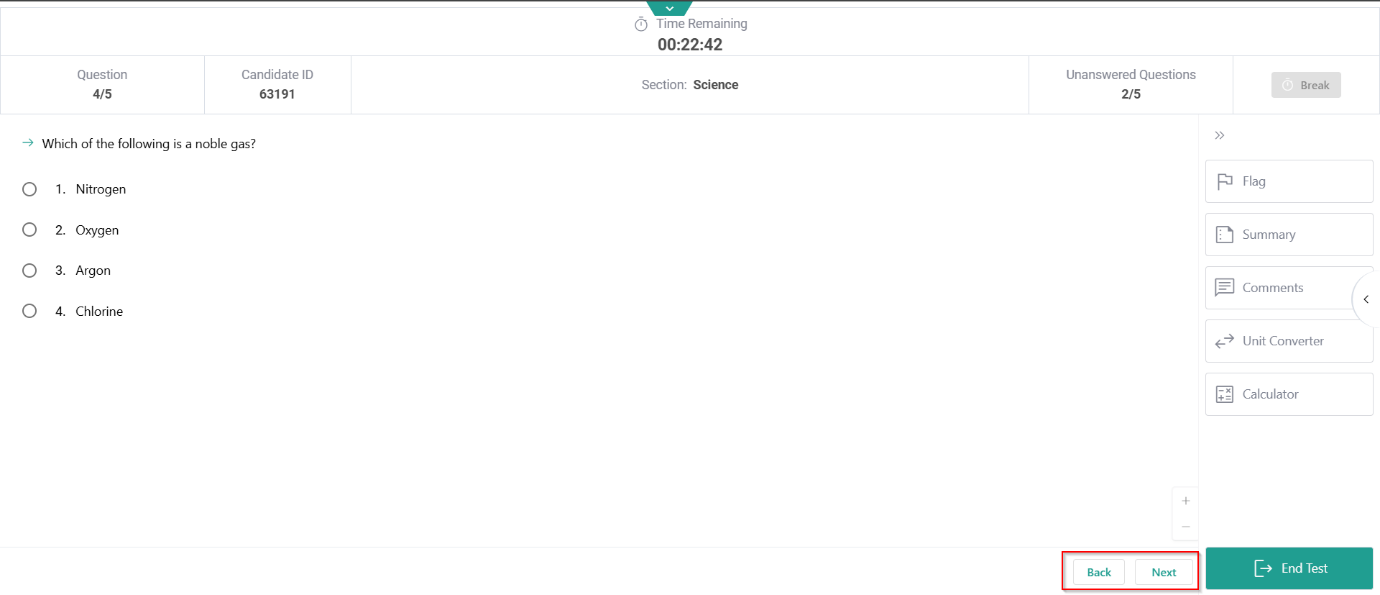
To answer a question, carefully review the question and all answer choices, then select your response. Click Next to save your answer and move forward. Click Back to go back (if allowed by your exam type and sponsor).
Ending Your Exam
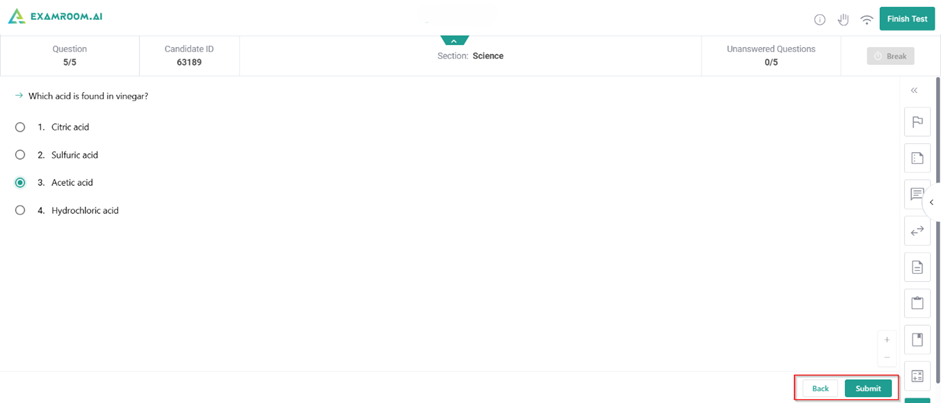
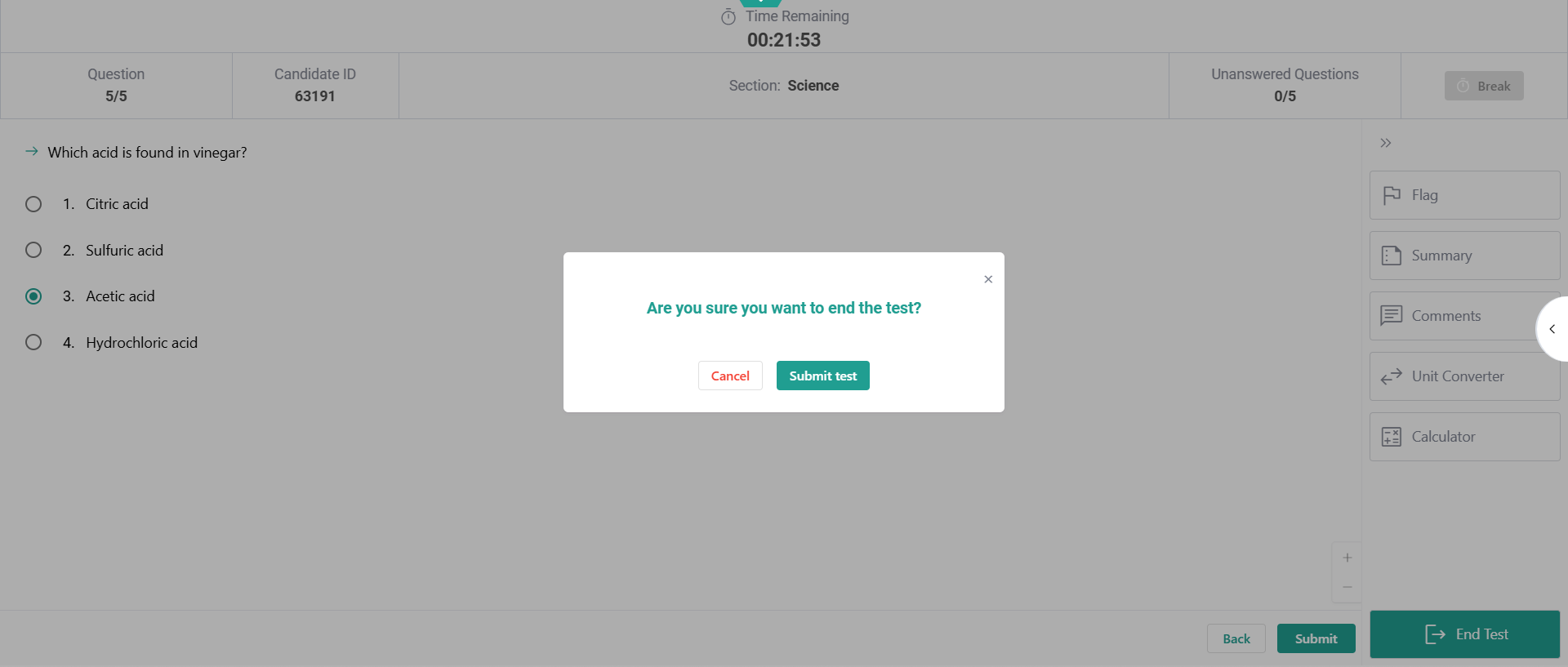
At the last question, upon making your selection of answers, click Submit to save your responses.
When you click Submit, a pop-up will appear asking if you wish to end the test. Click Submittest to submit your exam.
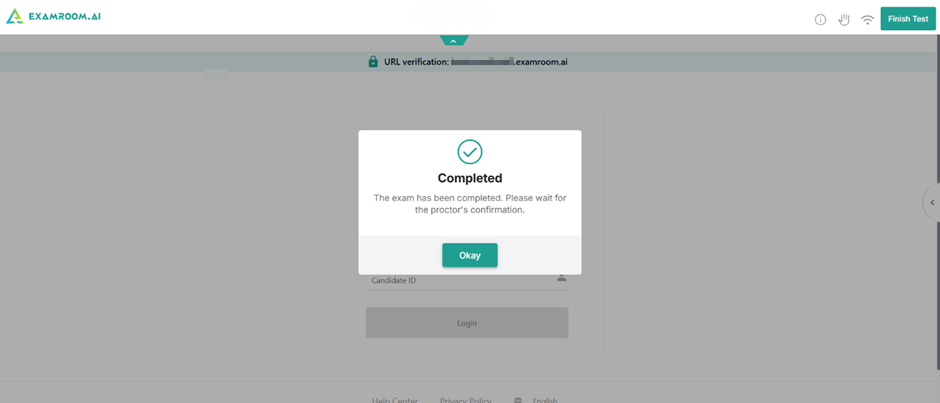
Now, a pop-up appears, indicating that your exam has been completed and is awaiting the proctor’s confirmation. Click Okay, and once the proctor ends the exam, you will be directed to your dashboard.
Support
If you encounter any issues, please contact us at our toll-free number: +1 877-848-3926 or use the chat support available on ExamRoom.AI.